AdaShape alpha 0.1.9 is out.
- Download the free alpha testing version on GitHub
This version introduces two new significant features to streamline your work:
- bookmarks that enable you to version your work
- multiple models within the same file
These two let you manage design history and explore variations without losing your earlier work.
Combined with the file that is continuously saved to your disk, you no longer need to manually store copies of your work just to keep parallel live versions.
No more need for several files with names like design_final_v3_REAL.ads to track your progress!
In addition to improved workflow, you get two new render modes to render your models presentation-ready: Beauty Workshop and Beauty Showroom modes. These present your model scale accurately on a 45 cm x 30 cm cutting mat and under studio lighting on a white reflective floor.
Format note: Opening an
.adsfile in 0.1.9 upgrades it permanently. AdaShape 0.1.8 and earlier can open the upgraded file, but saving from an older version can silently corrupt it. Keep a backup if you need to continue editing in an earlier version.
Bookmarks
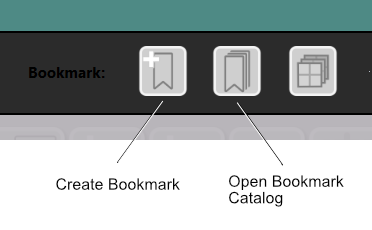
Bookmarks save a named snapshot of your model at any point in your modeling history. Click the Bookmarks button to capture the current state. Later, click any bookmark to enter view mode. This displays the bookmarked state. You cannot edit the bookmarked model directly. To edit the bookmark, you create a new model from it. The title bar shows “viewing bookmark: <name>” while you’re there. Return exits view mode and takes you back to where you were.
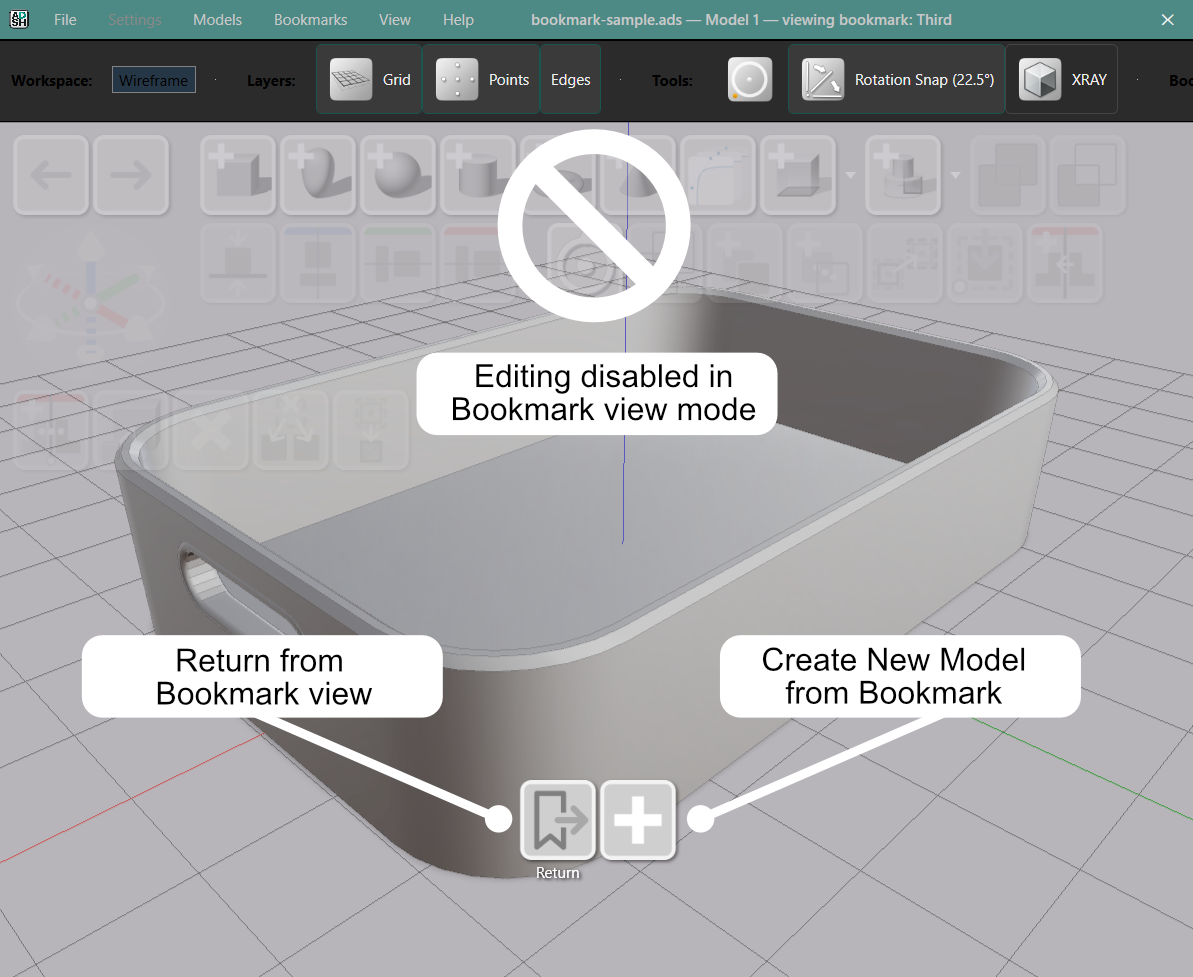
New model from bookmark forks the snapshot into a fully independent model. This acts as starting point for a design variation you want to develop separately.
Three toolbar buttons put the most common actions within reach without opening the menu: create bookmark, exit bookmark view, and fork to new model.
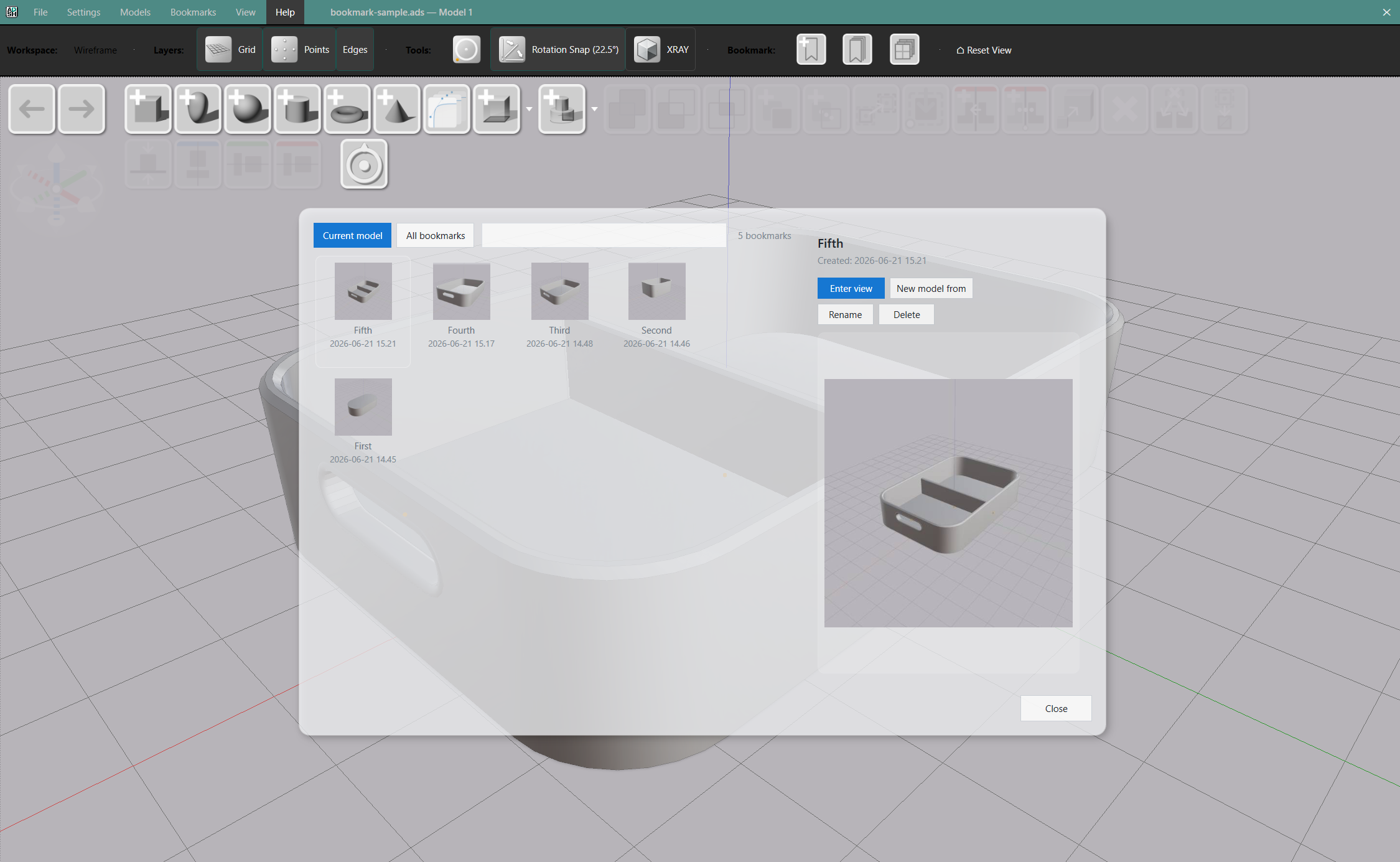
The Bookmark Catalog gives a visual overview of all your bookmarks with thumbnail previews. Current model tab lists the active model’s bookmarks newest first. All bookmarks tab lists bookmarks from every model in the file, with sort and search.
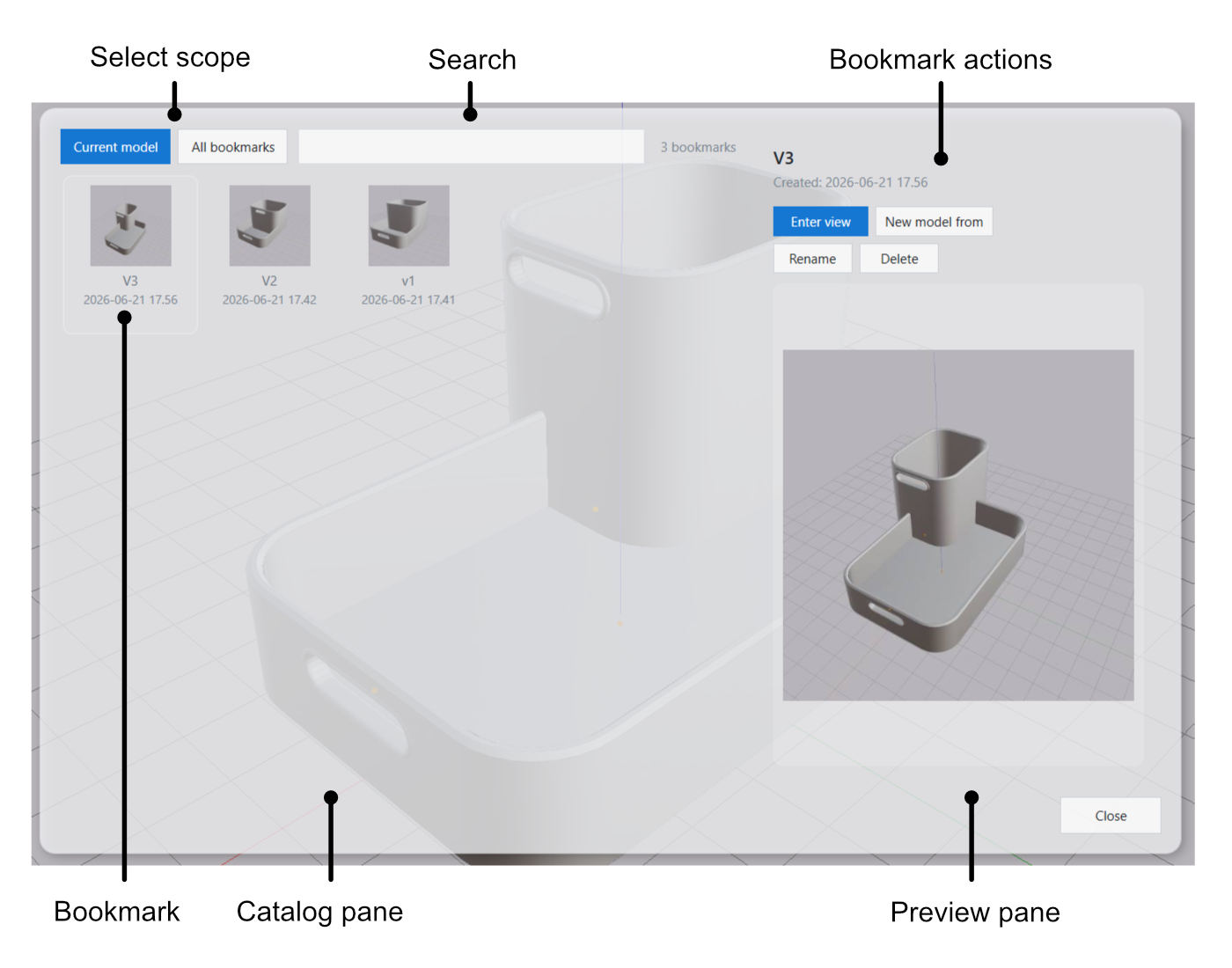
The right pane shows a full-size thumbnail and four actions: Enter view, New model from, Rename, and Delete. Deleted bookmarks cannot be restored.
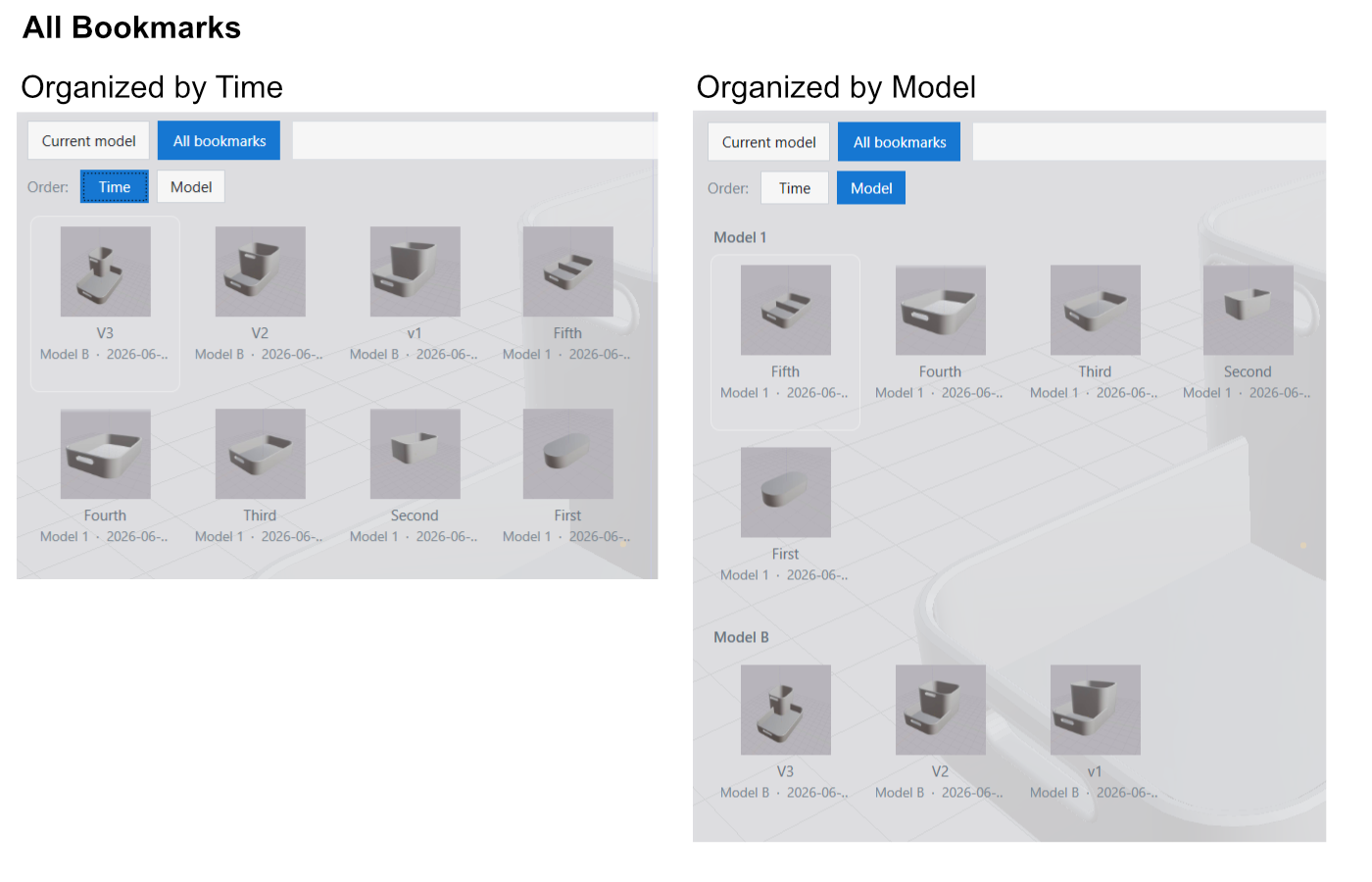
Multiple Models per File
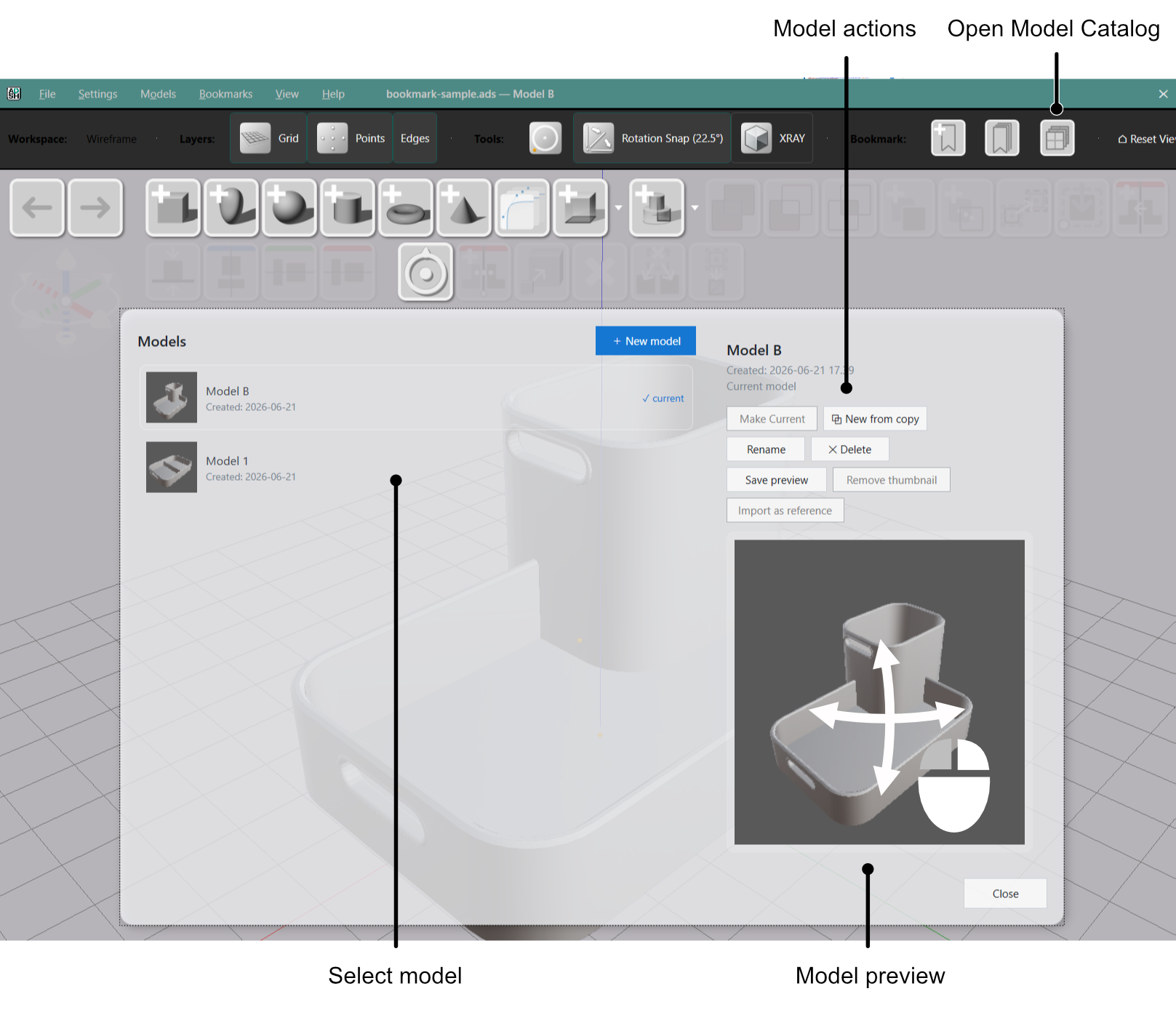
A single .ads file can now hold multiple models. Switch between them from the Model catalog without opening a second window. The title bar shows filename.ads — Model Name so the active model is always visible.
To create a new model: Click the blue “+ New Model” button in the model browser. Alternatively you can use the “Models” menu and select “New Model” action from there.
The Model Catalog is the visual hub for model management. It shows a live preview of every model. Click a model in the left-hand pane to switch preview to it. Double-click a model entry to make it current. The right pane shows a larger interactive preview you can orbit and zoom. From there: create a new model, clone an existing one into an independent copy, rename, delete, or capture a saved thumbnail.
Note: Captured thumbnails do not update automatically.
To move shapes between models, use Models → Copy model parts in one model and Models → Paste model parts in another.
Model Reference
Model reference allows you to reuse a model from the same file as a component inside another, or to create endless parallel design variations at any step.
For instance, you can now reuse a wheel design across multiple vehicle models and edit them in a single place.
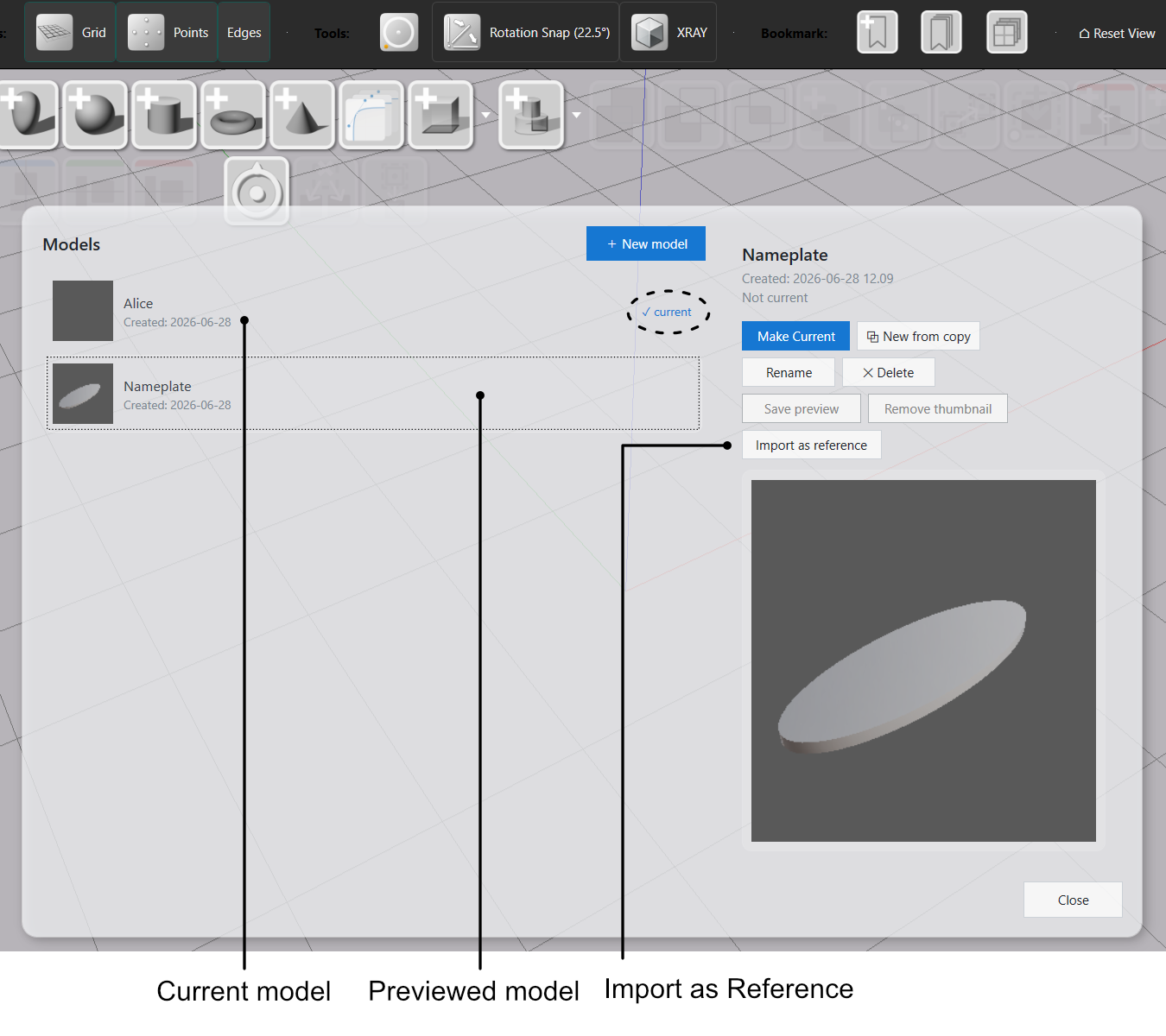
To import model to another model as reference:
- Select a model in the Model Browser
- Click Import Reference
The model import arrives as a single shape. The reference is read-only but can be placed and moved freely.
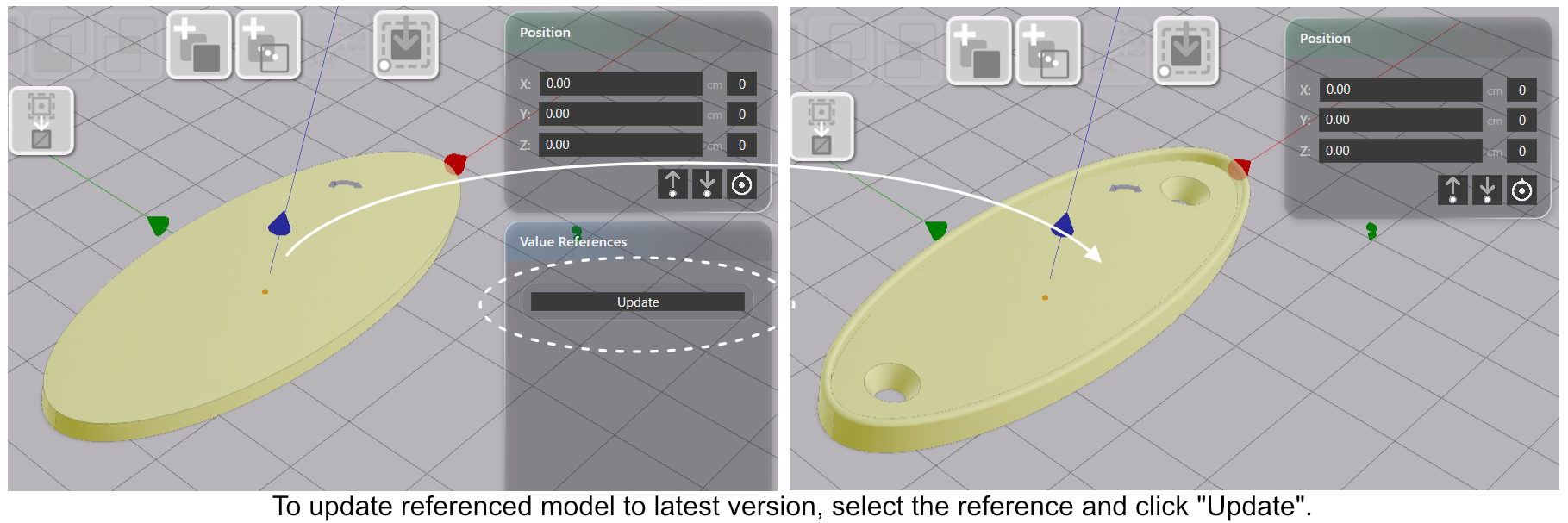
References update manually: when the source model changes, select the reference and click Update in the sidepane. Update leaves the part where you placed it.
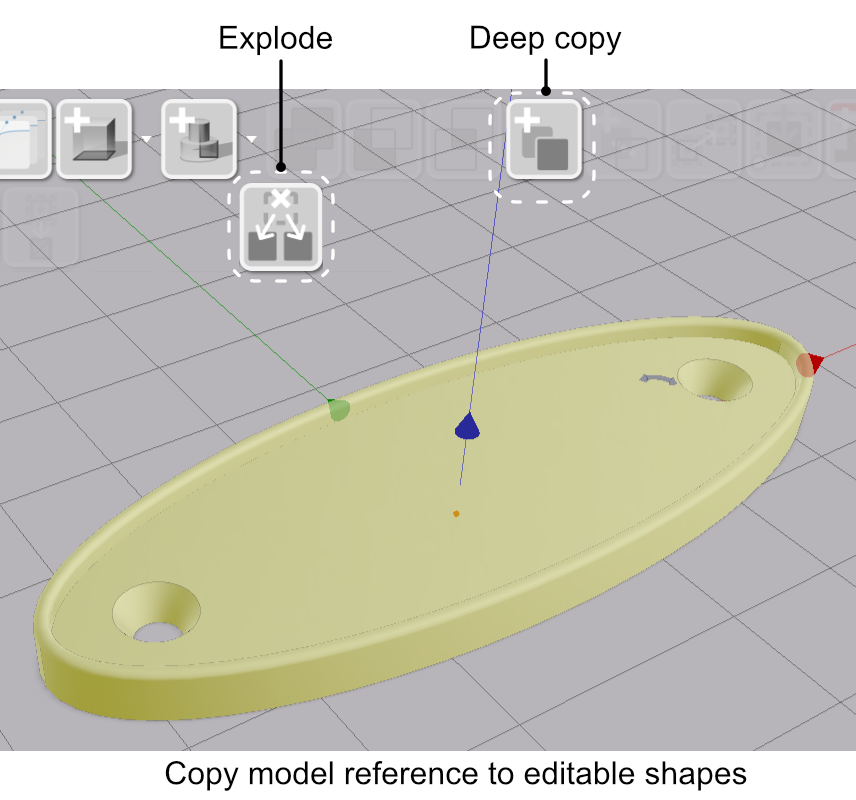
To edit a referenced part, convert it to local shapes. Copy Selected merges it into a single editable shape in place. Explode as Copies gives you each piece of the referenced model as its own independent shape. Importing a model reference or copying it to local shapes never changes the source model.
Beauty Render Modes
Two new render modes produce presentation-quality images: Beauty Workshop and Beauty Showroom.
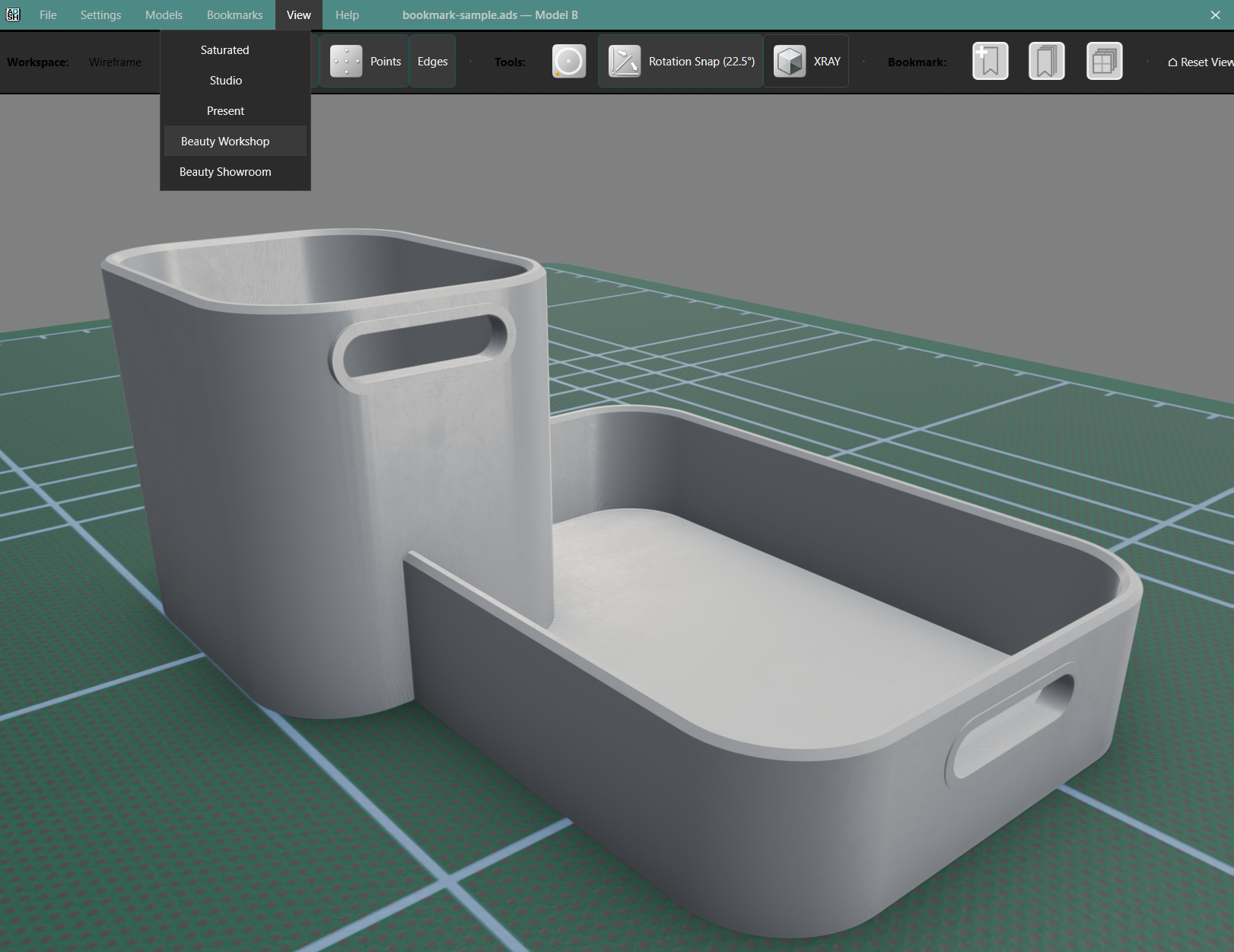
Beauty Workshop places the model on a 45 × 30 cm cutting mat — a working-bench look with a textured green grid surface against a neutral grey background.
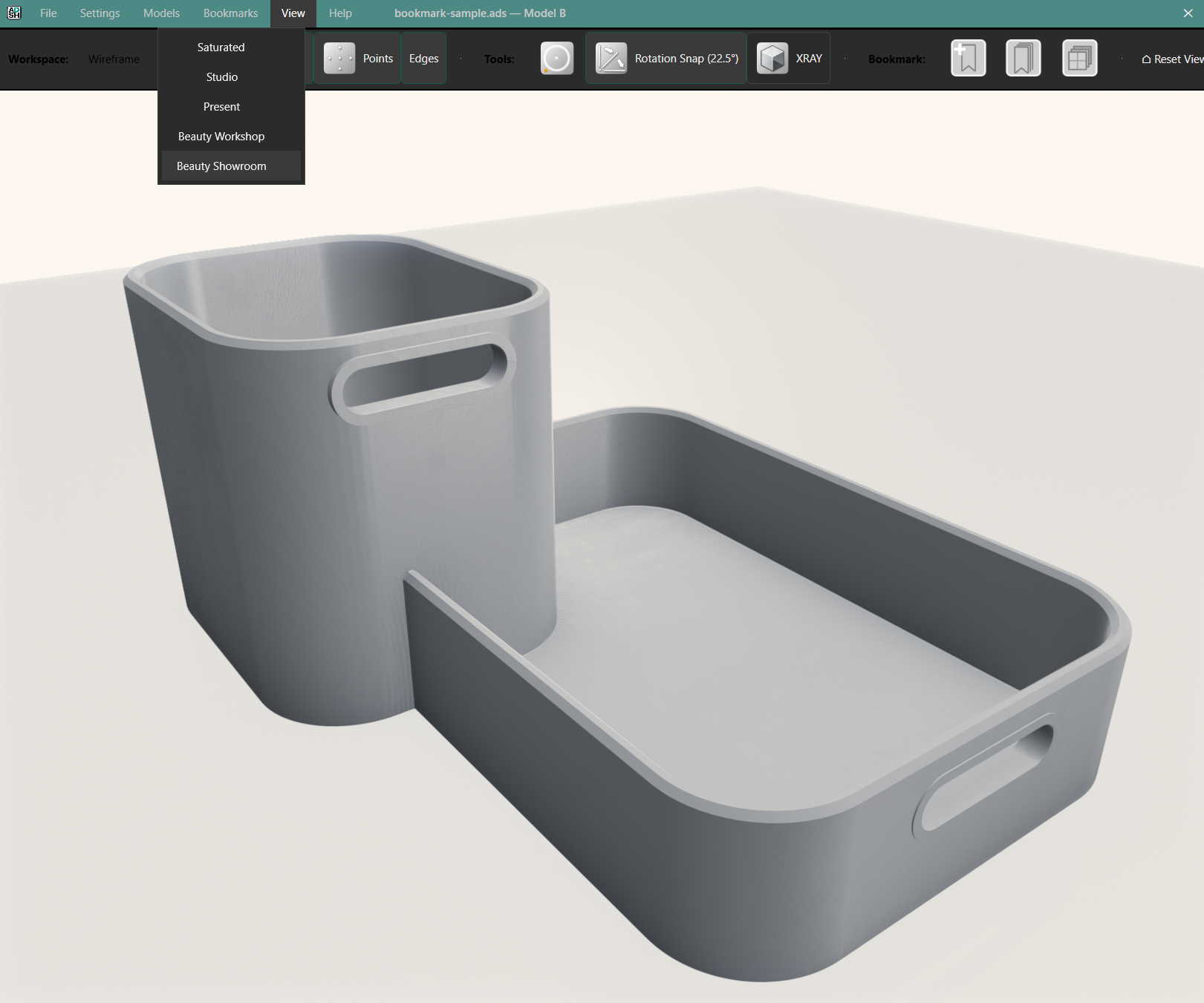
Beauty Showroom uses a clean white floor against a high-key cool background — a plain white backdrop for catalogue and product-shot framing.
Both modes draw the model with a smooth plastic material lit by a studio environment. The camera position carries over from other view modes — orbit in Studio and switch to Beauty without losing the angle. Beauty is render-only, so flipping back to Studio or Present continues your modeling session where you left off.
Save Screenshot is now mode-aware: PNG in either Beauty mode, JPEG in the other view modes.
Also in 0.1.9
Replace Referenced — Select two parts and click the replace toolbar button. The second part keeps its name and placement but switches to the first part’s shape. Both parts share the same shape from then on. Unlike Clone, no new part is created.
Boolean operations now produce a new part. Union, Cut, and Intersect create their result as a new part placed at the first selected part’s position, instead of modifying that part in place. Linked clones of the source parts are no longer affected. Both source parts are hidden, not deleted.
Settings menu — the Model menu is renamed Settings. Same options, clearer name now that “Model” is used for per-file models.
Bug fixes: file format version check before opening (with clear upgrade and incompatibility messages), paste with unresolvable parameter references now fails cleanly rather than silently dropping parameters.
Do remember backups
AdaShape saves your full modeling history continuously to disk. Backups are still recommended as AdaShape is an offline solution and does not protect against local hardware failure.
To try this out: