The Drawing Browser
A catalogue of stored profile drawings — create shapes from them, import them into the Drawing Editor, or save them as SVG.
The Drawing Browser is a catalogue of 2D profile drawings stored in your model. Instead of recreating a profile from scratch, you open the browser, pick a stored drawing, and use it directly — as a new extrusion, a new revolve, or as the starting point for further editing.
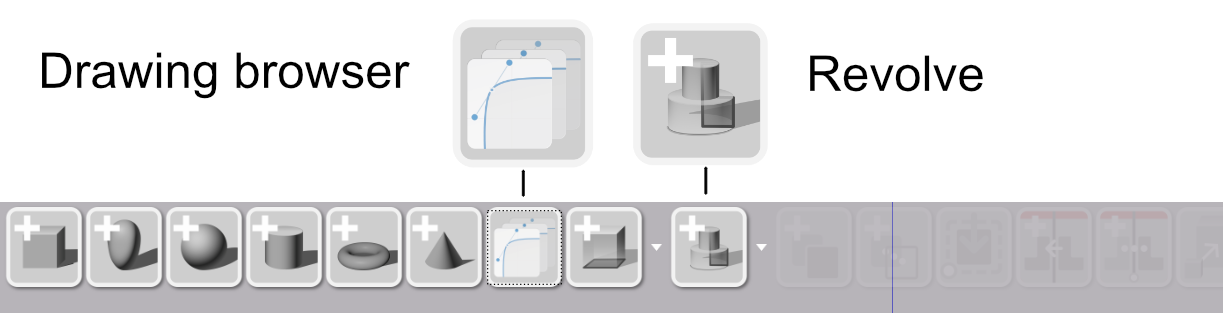
The Catalogue
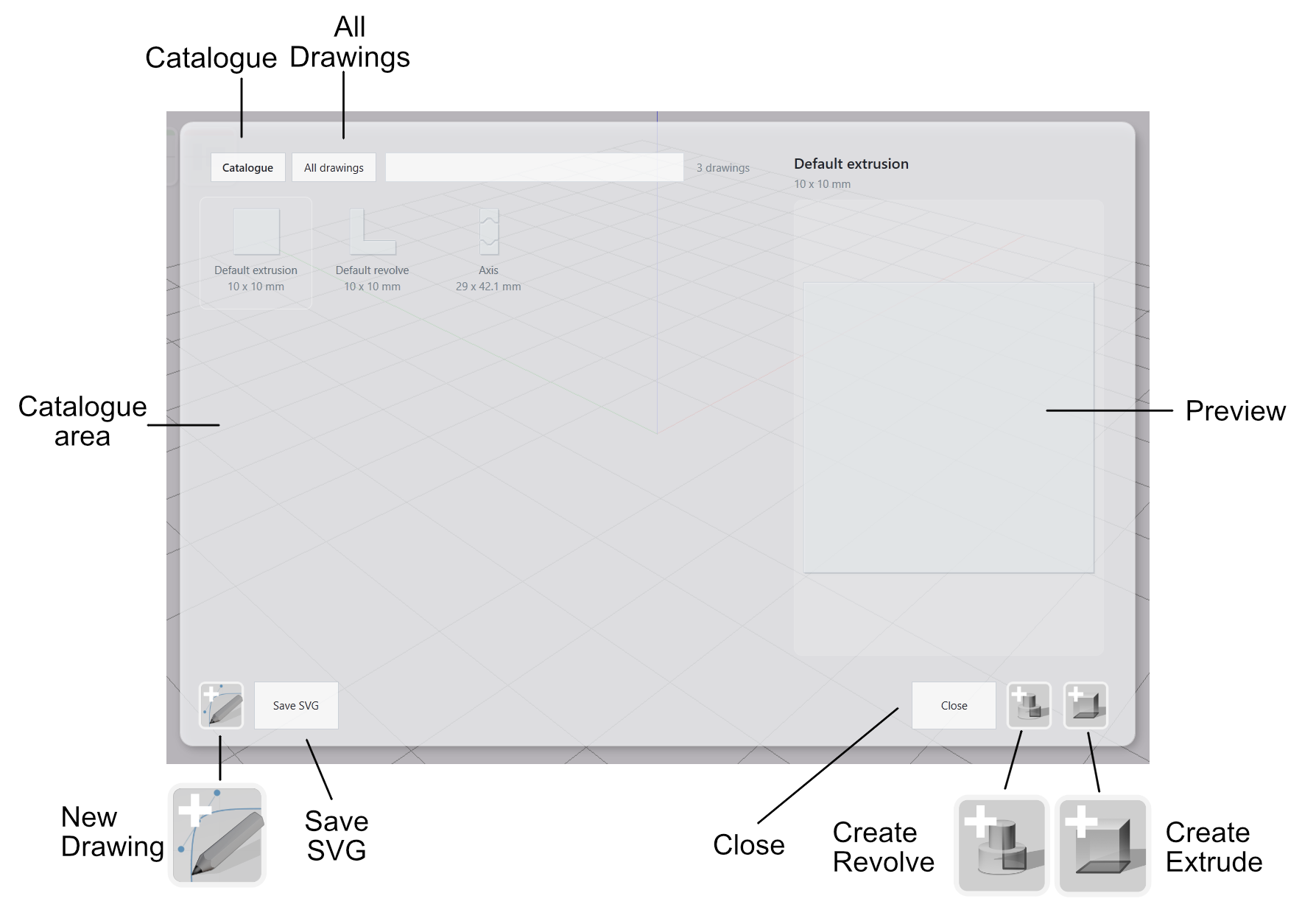
Each entry in the catalogue shows a visual preview, the drawing’s name, and its physical dimensions. The browser includes a set of default profiles to get you started with common extrusion and revolve workflows.
Adding Drawings to the Catalogue
Two actions add a drawing to the catalogue:
- Open the Drawing Editor for any shape and click the Add to Catalogue button in the toolbar. The current profile is saved under its drawing name.
- Import an SVG file. AdaShape automatically adds the imported drawing to the catalogue, using the source filename as the catalogue name when one is available.
What You Can Do from the Browser
Select any drawing in the catalogue, then choose an action:
- Create Extrusion — adds a new extrusion to the scene using the selected drawing as its profile.
- Create Revolve — adds a new revolve to the scene using the selected drawing as its profile.
- Import into Drawing Editor — loads the selected drawing into the currently active Drawing Editor session.
- Save as SVG — exports the selected drawing as an SVG file to disk.
All Drawings
The All Drawings panel lists every drawing that has ever existed in the model’s history — not just the ones you have added to the catalogue.
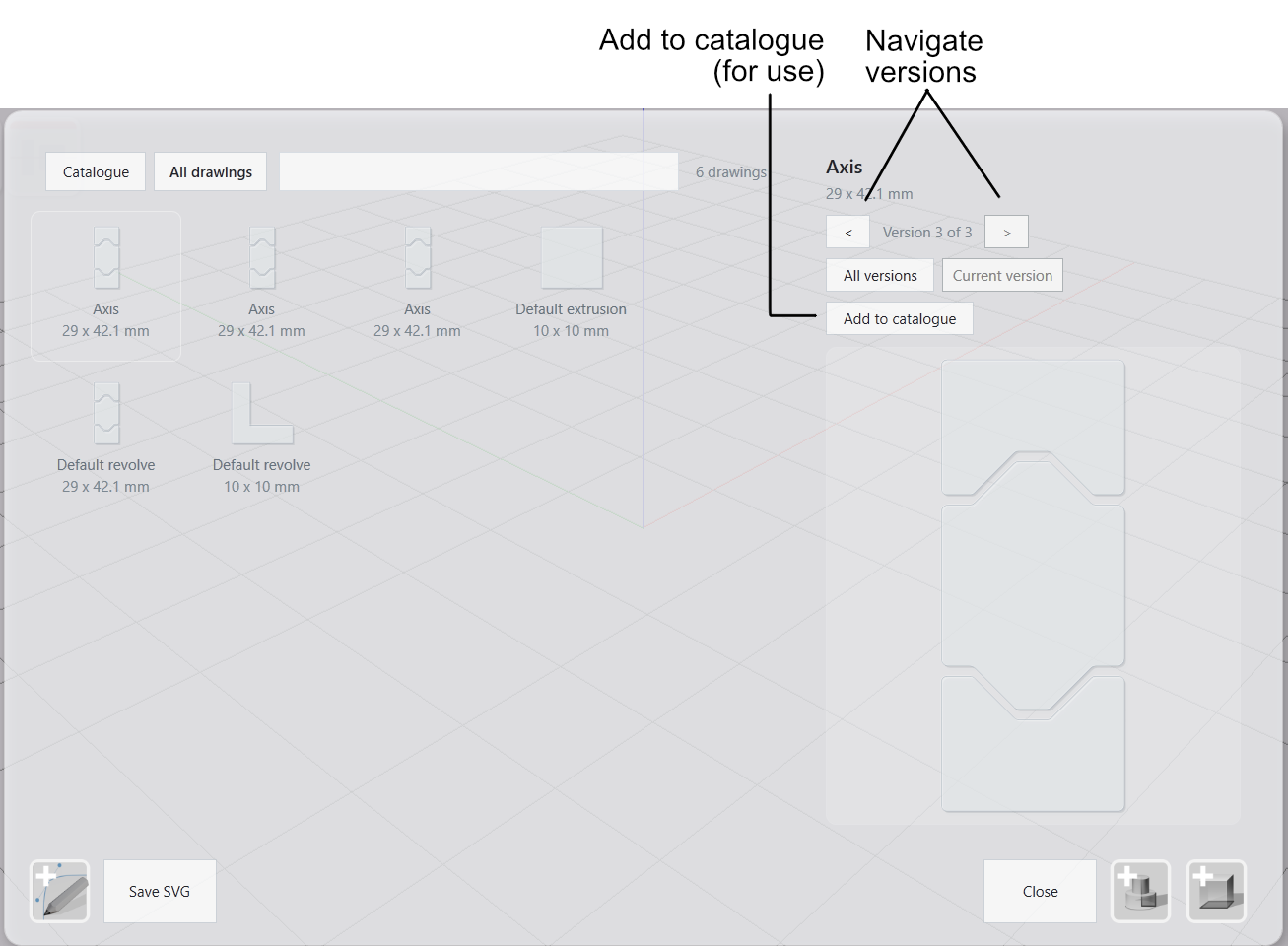
Select a drawing in the panel to see all its versions on the right side. Click any version to preview it, then save it to the catalogue. This does not modify the model’s history.
All Drawings is not part of the main workflow. Use it when you need to recover a drawing from an earlier stage of the model — a profile you edited away, or a shape you want to reuse.