Deep Edit
Drill into a boolean or packed entity to select and edit individual sub-components directly in the viewport.
Deep Edit lets you reach inside a boolean result or packed group and edit its sub-components directly in the 3D viewport. You can select, move, and modify individual parts without losing sight of the surrounding model.
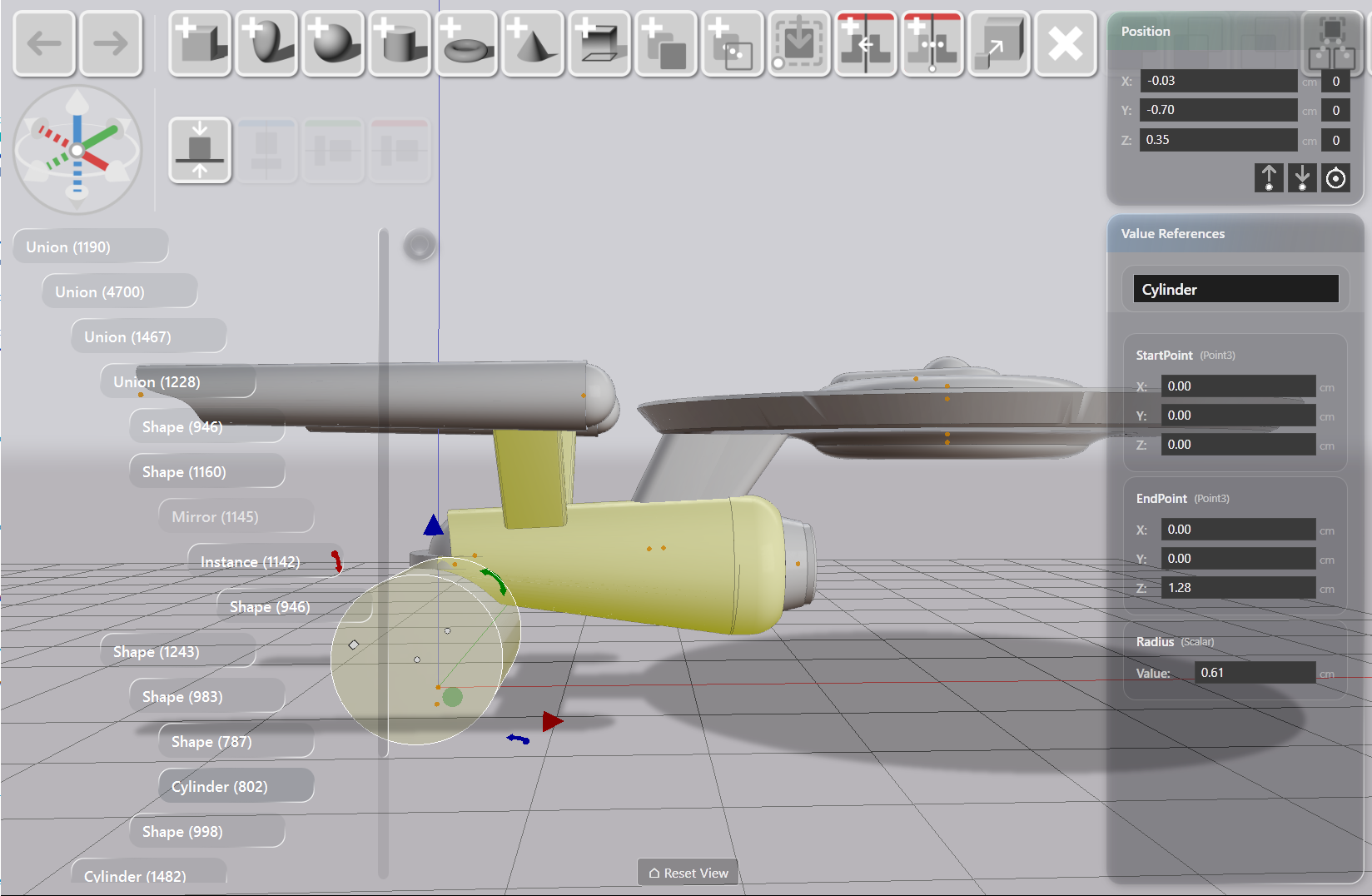
Entering Deep Edit
- Select a boolean result or packed entity in the viewport.
- Click Deep Edit in the toolbar, or double-click the object.
A floating hierarchy overlay appears in the upper-left of the viewport. It shows the entity’s internal structure as a set of interactive cards — one card per sub-component. The surrounding model stays visible, rendered at reduced opacity so the sub-components stand out.
Navigating the Hierarchy
Hover over a card to highlight the corresponding geometry in the 3D view. Hover over geometry in the viewport to highlight the matching card.
Click a card to select that sub-component. The Value References sidebar and Position Editor update to show that sub-component’s parameters and name. You can edit values, reposition the sub-component, or apply further operations to it. Clone and copy operations act on the selected sub-component rather than the root entity.
Managing Complexity with Node Toggles
Each node in the hierarchy tree has a toggle to enable or disable deep editing for that subtree.
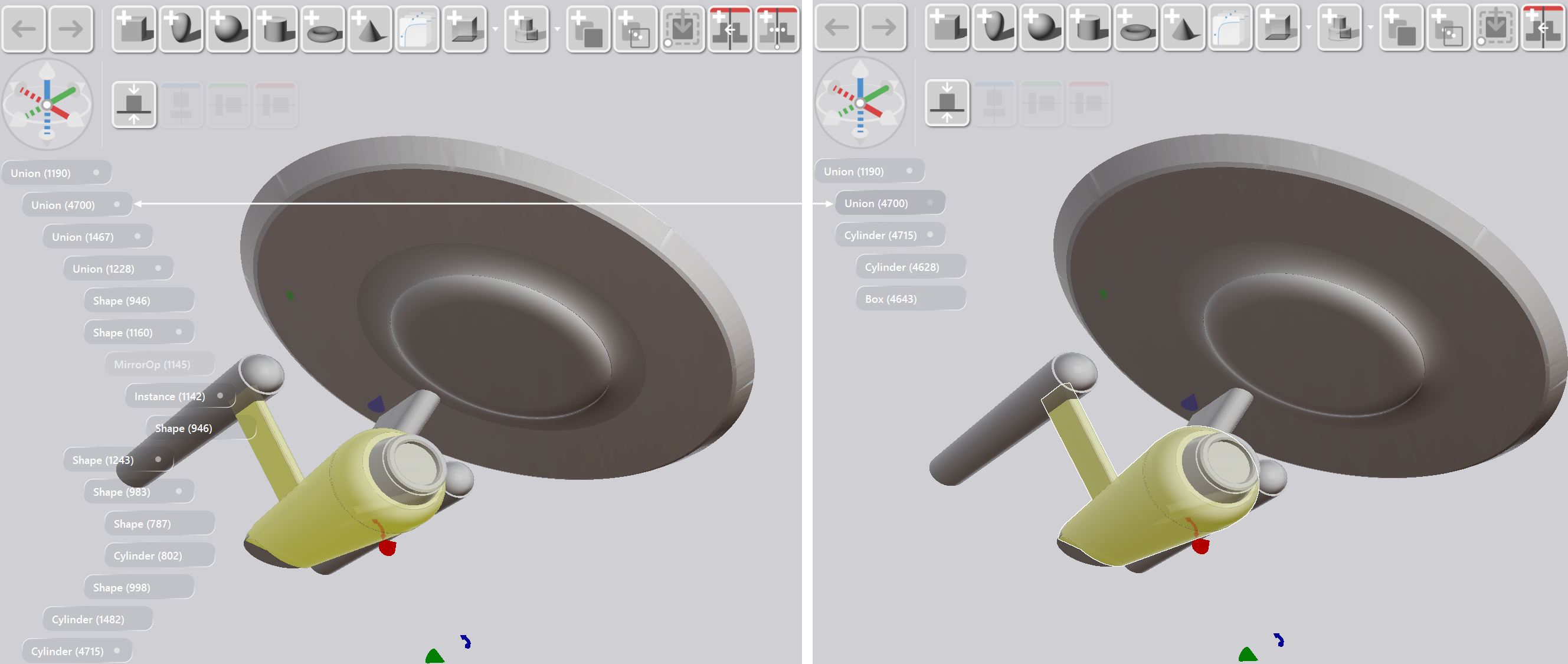
Disable a node to collapse its children from both the overlay and the 3D preview. The sub-assembly is still part of the model — it is just excluded from the current editing context. This is useful when a boolean contains many parts and you only need to work on one section. The toggle setting persists across sessions. The root node’s toggle controls the entire hierarchy.
Exiting Deep Edit
Press Escape to exit Deep Edit and return to root-level editing. The hierarchy overlay closes and the full model returns to normal rendering.