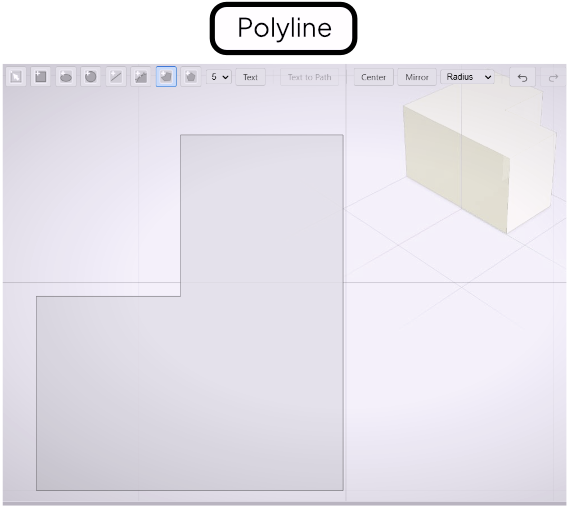
Polyline Tool
Place vertices one by one to build open or closed paths — closed polylines extrude as solids.
The Polyline tool builds paths from straight segments, vertex by vertex. Use it for profiles with straight sides that don’t align to a single axis — stepped shapes, angled brackets, irregular frames.
Placing Vertices
Select the Polyline tool from the toolbar. Click to place the first vertex, then keep clicking to add segments. Each click extends the path by one straight segment.
Closing or Leaving Open
To close the path, click the first vertex you placed. Closed polylines extrude as solid cross-sections. To leave the path open, double-click or press Enter — open polylines extrude as wall or ribbon geometry.
Edge Treatments
Closed polylines support corner rounding. After drawing, a treatment handle appears on the canvas. Drag it to round the corners. Three modes are available:
- Radius — applies a uniform arc radius to all corners.
- Distance — applies a uniform offset distance along each edge.
- Full — applies the maximum possible rounding given the edge lengths.
Select the mode in the toolbar and drag the handle to adjust interactively.