The Profile Editor
Draw each profile of a loft with the Drawing Editor tools, with another profile shown as a reference outline.
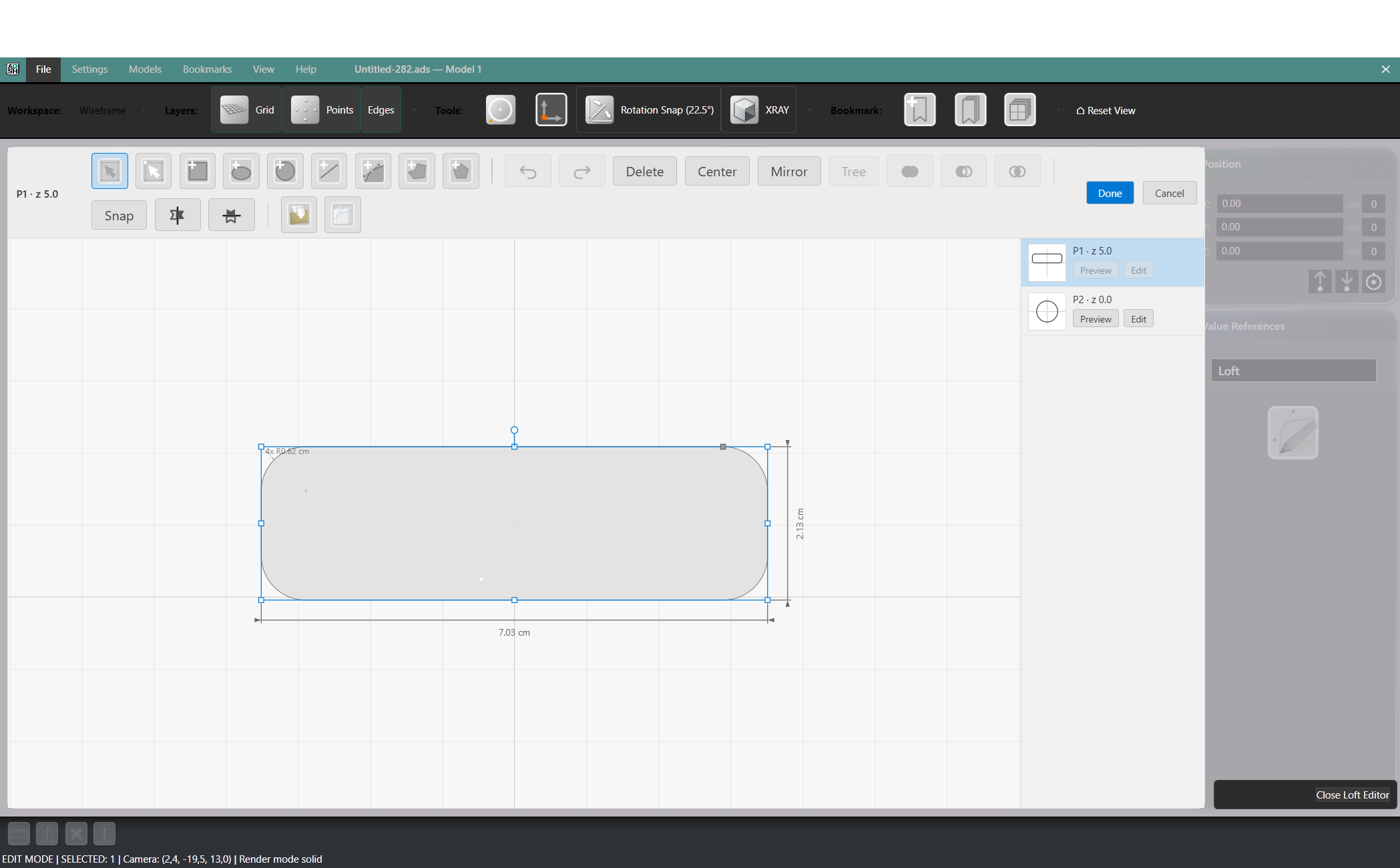
The profile editor is where you draw the outline of one profile. It has the same tools as the Drawing Editor and adds a side panel that lists every profile of the loft.
To open it, double-click a profile in the loft editor, or select the profile and click Edit drawing.
The Profile List
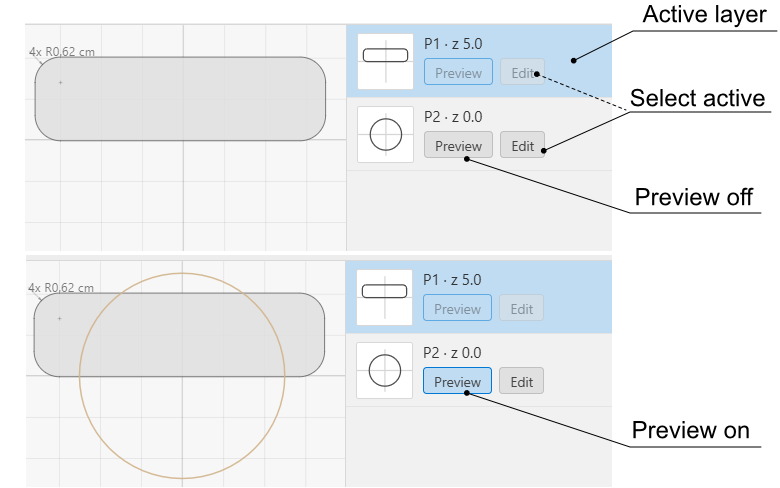
The side panel lists every profile by height, the highest first. Each row shows a thumbnail of the profile’s drawing with its axes. All thumbnails share one scale and one origin, so you can compare the size and position of the profiles at a glance.
- Preview shows that profile as a tan outline in the drawing area while you draw another profile. Click it again to hide the outline.
- Edit switches to that profile.
Saving and Cancelling
Switching to another profile saves the one you leave. Cancel discards the edits to the current profile only. Copy and paste carry across profiles: copy a shape in one profile and paste it into another.
Escape cancels the action in progress, such as a polyline, a spline, a drag or a node edit. A second Escape closes the profile editor and saves.
Mirrored Drawing
The mirrored drawing mode toggles are available in the profile editor. The mode is saved with the drawing.
Profile Rules
Each profile must be a single closed loop. When a drawing contains several shapes, only one of them takes part in the loft. Holes in the profile are ignored.
Note: When you redraw a profile, its anchor points may no longer land on the new outline. See broken anchors.