Multiple Models per File
Hold several independent models in one .ads file and switch between them without opening a second window, from the Model Catalog.
A single .ads file can hold more than one model. Keep a family of related designs together — three sizes of the same bracket, a part and its packaging, a set of variations you are still choosing between — and switch between them from the Model Catalog. Each model is fully independent: editing one never touches another. (Model references, covered below, are the one deliberate exception.)
The title bar shows filename.ads — Model Name so the active model is always visible.
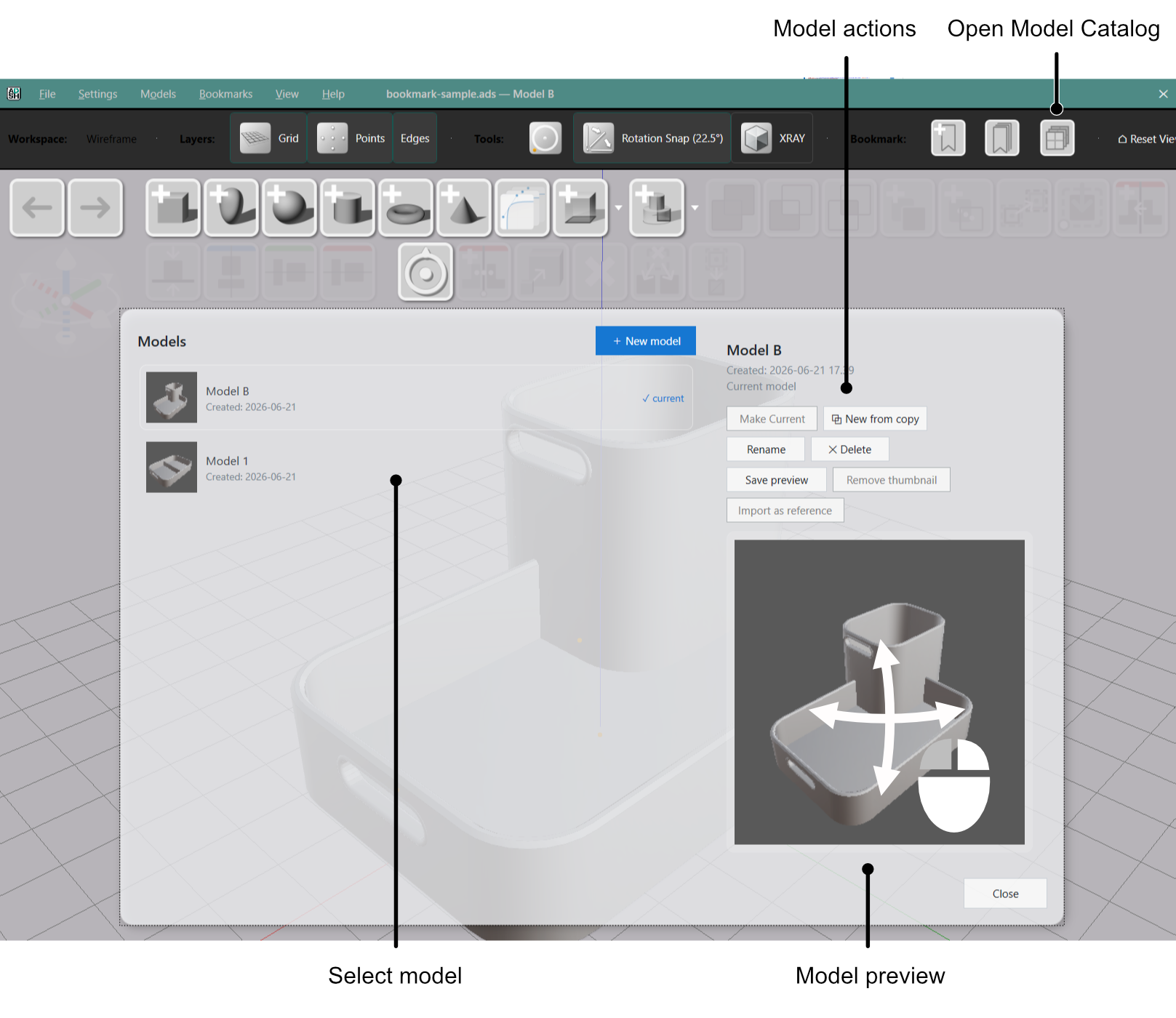
The Model Catalog
Click the model-catalog button in the workspace toolbar to open the catalog as an overlay. It lists every model in the file, newest first, and marks the active one ✓ current. Each row shows a live 3D thumbnail rendered from a consistent angle.
Select a model to see a larger interactive preview in the right pane, alongside its name, creation date, and current state:
- Drag to orbit the preview.
- Scroll to zoom.
- Double-click to reset to the default view.
Creating and Managing Models
All model management lives in the catalog. Select a model in the left pane and use the actions in the right pane, or the header buttons:
| Action | What it does |
|---|---|
| New model | Creates a fresh, empty model (header button). |
| Make current | Switches to the selected model. Also works by double-clicking a row; disabled when the model is already current. |
| New from copy | Clones the selected model — including one that is not current — into an independent copy that becomes current. |
| Rename | Renames in place. Enter commits, Esc cancels. |
| Delete | Hides the model from your workspace (with a confirmation). |
| Save preview | Captures the current viewport as this row’s thumbnail, replacing the live render. Enabled only for the current model. |
| Remove thumbnail | Deletes a saved thumbnail and reverts the row to the live render. |
You can also create a model from the Models menu with New Model.
The right-pane preview is always a live render. A saved preview replaces the live render only in that model’s row in the list — useful for pinning a representative angle for a model you switch to often.
Delete keeps your data but is not reversible in the app. Deleting hides the model from your workspace; the data stays on disk, but restoring it is not yet supported. Deleting the current model switches you to another; deleting the last model creates a fresh empty one automatically.
Moving Parts Between Models
To copy parts from one model into another:
- Select the parts you want in the source model.
- Models → Copy model parts.
- Switch to the destination model.
- Models → Paste model parts.
The pasted parts arrive as a full, independent copy — completely detached from the source. The transfer board stays loaded after a paste, so you can paste the same selection into another model without copying again. The menu item is disabled and labeled (transfer board empty) until you copy something.
To reuse a whole model as a linked component you can refresh from its source — rather than a detached copy — use a model reference instead.