The Drawing Editor
A 2D vector editor for creating and modifying profile drawings used in extrusions and revolves.
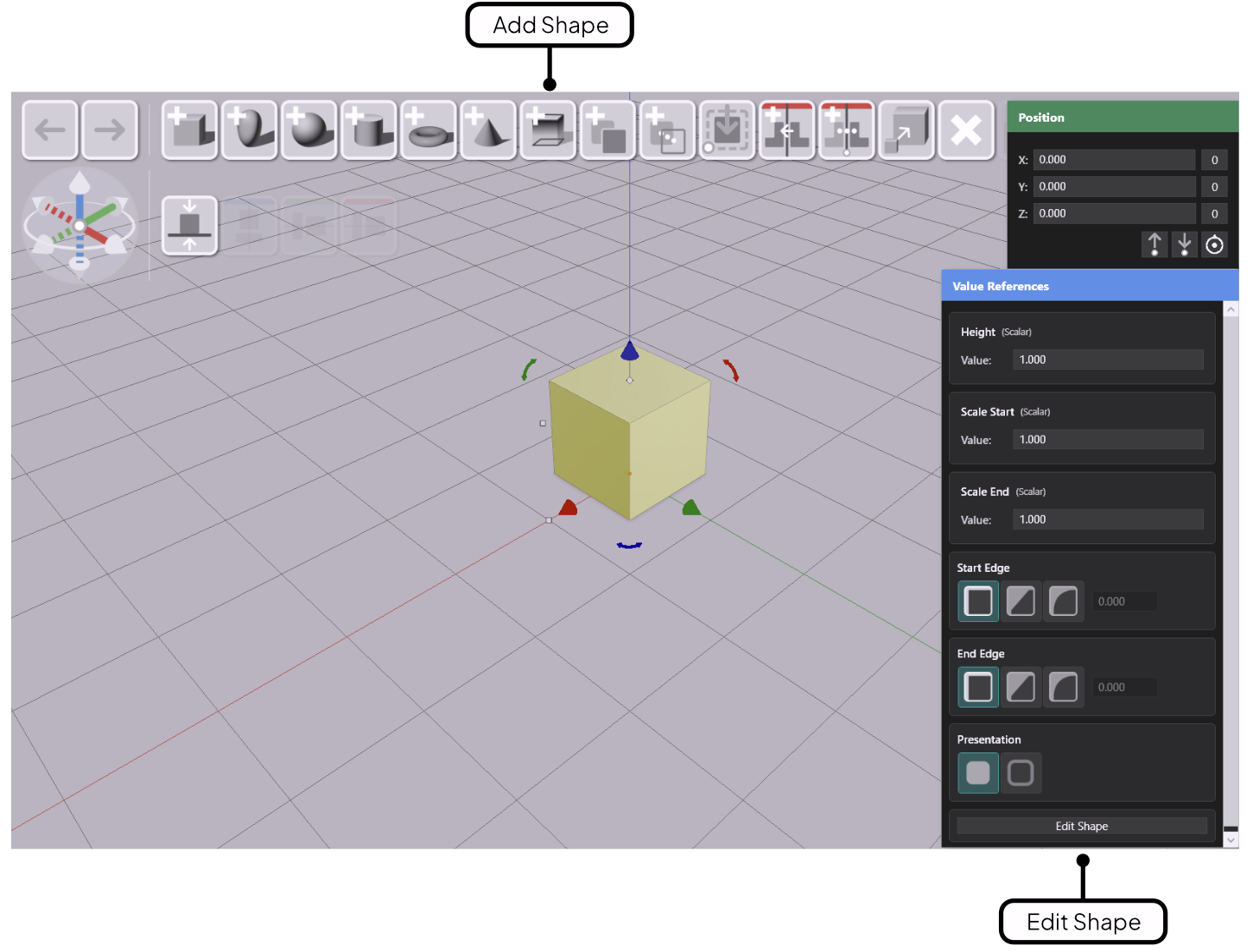
The Drawing Editor is AdaShape’s built-in 2D vector editor. You use it to draw and modify the cross-section of a shape — the flat profile that extrusion and revolve operations work from. Any shape you create with Add Shape, or import as an SVG, has a profile drawing you can open and edit at any time.
Opening the Drawing Editor
Select a shape in the scene. In the Value References panel on the right, click Edit Drawing. The Drawing Editor opens and fills the viewport.
Closing and applying changes
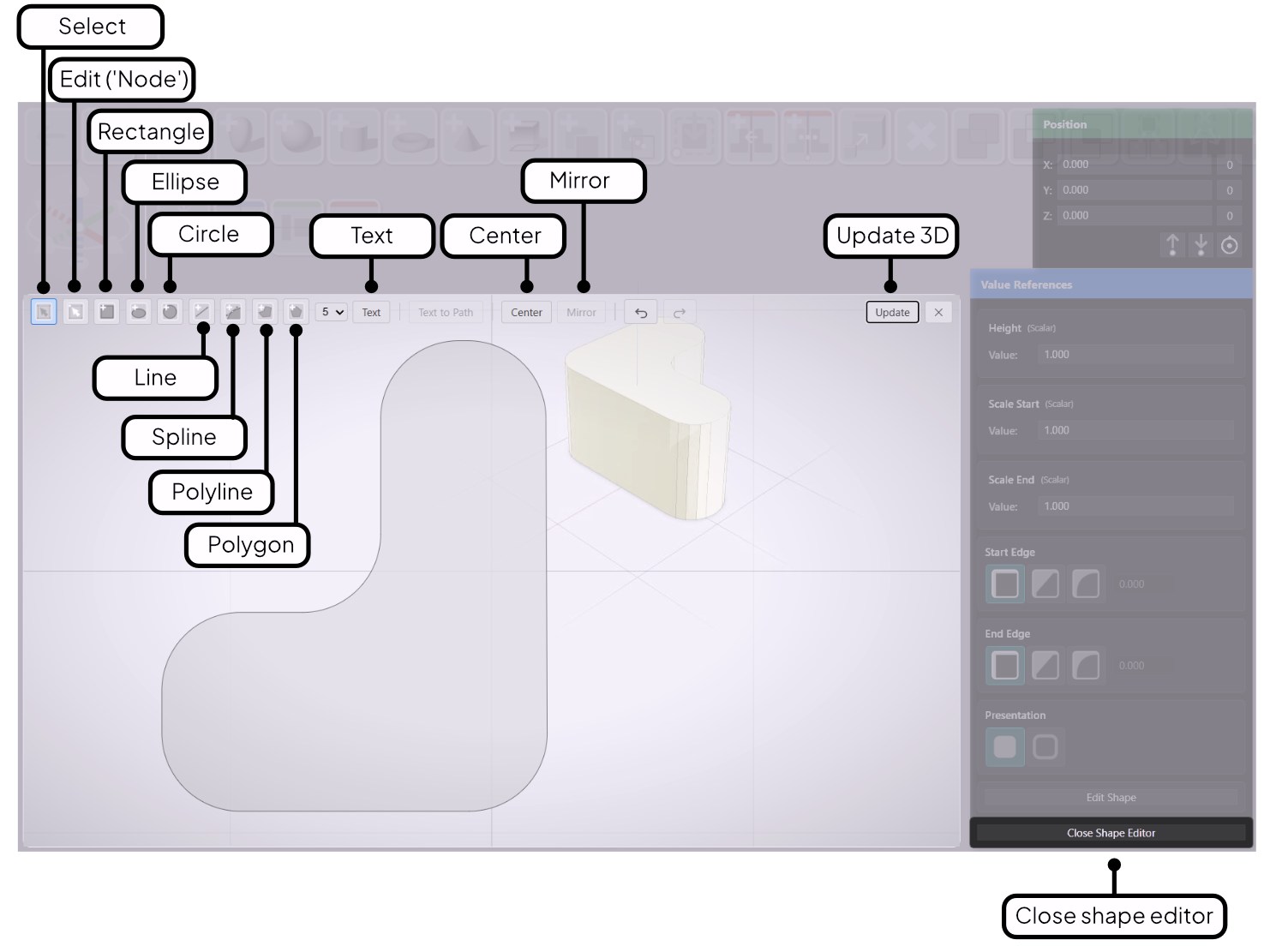
Click Close in the toolbar to exit the Drawing Editor. The 3D shape updates to reflect your drawing. You can also click Update at any time to preview the result without closing.
If your drawing contains only open paths and the shape is set to Solid, AdaShape automatically switches it to Buffered presentation on update or close. Open paths cannot form a solid cross-section.
The workspace
The Drawing Editor has its own toolbar and coordinate system. The horizontal and vertical axis lines mark the origin — the center point the 3D operation uses as its reference.
Navigating the canvas:
| Action | How |
|---|---|
| Zoom | Mouse wheel |
| Pan | Middle-click and drag, or Space + left-click and drag |
| Undo | Ctrl+Z |
| Redo | Ctrl+Y |
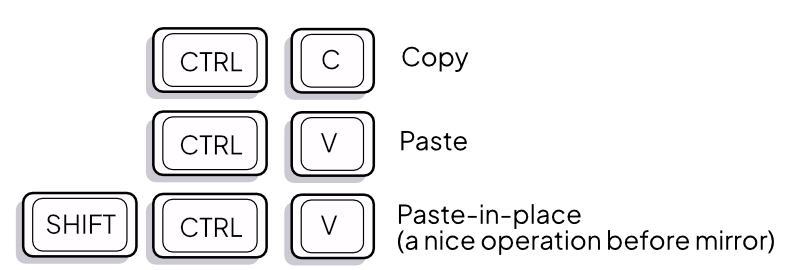
| Copy | Ctrl+C |
| Paste | Ctrl+V |
| Paste in place | Shift+Ctrl+V |
Hold Shift while dragging a shape or editing a node to constrain movement to horizontal, vertical, or 45° diagonal — whichever axis you move along first.
You can also center the current selection at the origin, and mirror it across the Y-axis. Both actions are available from the toolbar.
Toolbar options
The toolbar includes a Style dropdown with Default and B&W display modes, and an Export SVG button to save the current drawing as an SVG file.
Copy, paste and boolean buttons
Copy, Paste and Paste in place sit in the toolbar next to Mirror. Copy is disabled with nothing selected. Paste and Paste in place are disabled until something has been copied. Two toggles next to Mirror turn on mirrored drawing mode. Union, Difference and Intersect sit in the toolbar as well. See Boolean Operations.
Drawing tools
Each tool has its own sub-page with full details.
| Tool | What it does |
|---|---|
| Select | Move, resize, and transform shapes |
| Node | Edit individual anchor points and curve handles |
| Rectangle | Draw axis-aligned rectangles |
| Ellipse | Draw ellipses and ovals |
| Circle | Draw perfect circles |
| Line | Draw straight line segments |
| Spline | Draw smooth curves through a series of points |
| Polyline | Draw connected straight segments |
| Polygon | Draw regular polygons with a set number of sides |
| Text | Place text as vector geometry |
- Select Tool Select, move, resize, and rotate shapes in the Drawing Editor.
- Node Edit Tool Edit individual anchor points on paths — insert, delete, and adjust nodes and curve handles.
- Rectangle Tool Draw rectangles with optional rounded corners.
- Ellipse Tool Draw ellipses and ovals as profile shapes.
- Circle Tool Draw perfect circles with automatic centerline annotations.
- Line Tool Draw straight line segments for use in open-path profiles.
- Spline Tool Draw free-form paths with bezier curves — click for corners, drag for smooth curves.
- Polyline Tool Place vertices one by one to build open or closed paths — closed polylines extrude as solids.
- Polygon Tool Draw regular polygons with 3 to 8 sides, with optional corner rounding.
- Text Tool Place editable text on the canvas — text converts to vector outlines for extrusion.
- Edge Treatments Round or chamfer corners on polylines, polygons, and boolean results using Radius, Distance, or Full mode.
- Boolean Operations Combine shapes with Union, Difference, and Intersect — and edit the source shapes non-destructively after combining.
- Mirrored Drawing Mode Keep a drawing symmetric as you draw — edit one half, and the other half is reflected live.
- Dimension Annotations Dimension lines, radius marks, and diameter annotations shown on selected shapes in the Drawing Editor.
- Numeric Input Type exact dimensions for the selected shape using the numeric input panel below the toolbar.
- Drawings Mode and Save Image Switch to a technical drawing appearance and export the current view as a PNG image.
- SVG Export and Import Export a drawing as an SVG file with physical dimensions, and import SVGs at the correct scale.