Numeric Input
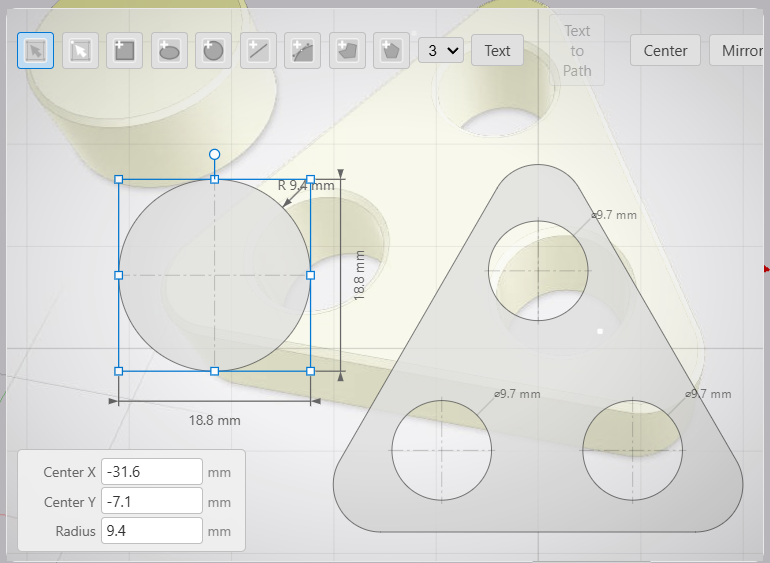
Type exact dimensions for the selected shape using the numeric input panel below the toolbar.
The numeric input panel sits below the Drawing Editor toolbar. It shows editable fields for the selected shape, so you can set exact dimensions without dragging handles.
What the Panel Shows
Select any shape to see its dimensions in the panel:
- Circles — center X coordinate, center Y coordinate, and radius.
- All other shapes — width and height.
Typing Exact Values
Click any field and type a value. Press Tab to move to the next field or Enter to confirm. The shape updates immediately.
You can use the panel at any point — after drawing a shape, after moving it, or as the primary way to create precise geometry without relying on the canvas at all.
Live Updates
The panel stays in sync with everything you do on the canvas. Move a shape by dragging and the coordinates update as you drag. Resize with a handle and the width or height updates in real time. Undo or redo an action and the panel reflects the new state immediately.