Height and Taper
Set extrusion height and taper the shape by scaling the profile at each end.
Height controls how far the profile is extruded. Scale Start and Scale End let you taper the shape — the profile at each end can be a different size, creating pyramidal, conical, or flared geometry from any profile.
Setting Height
Select the extrusion and type a value into the Height field in the Value References panel. You can also drag the white diamond widget directly on the shape.
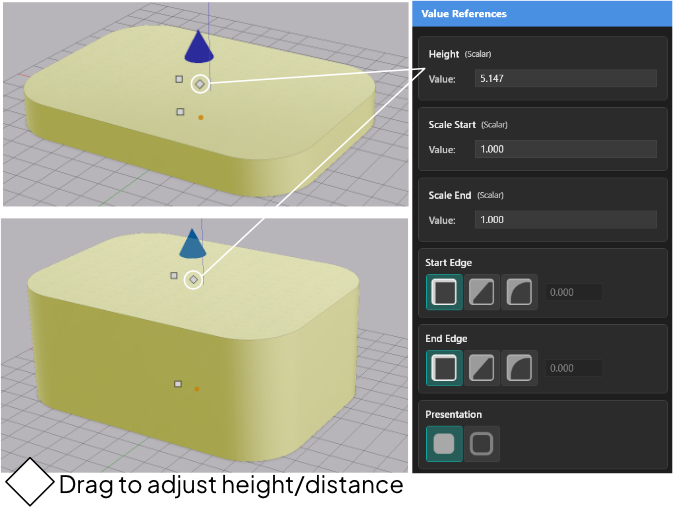
The white diamond sits at the top of the extrusion. Drag it up to increase height, down to decrease it.
Tapering with Scale Start and Scale End
Scale Start controls the size of the profile at the bottom end. Scale End controls the size at the top end. Both default to 1.0 — no scaling, uniform cross-section along the full height.
Change either value to taper the shape:
- Set Scale End below 1.0 to make the top smaller than the bottom — a pyramid or cone.
- Set Scale End above 1.0 to make the top larger — a flared or funnel shape.
- Set Scale Start and Scale End to different values for an asymmetric taper.
Any profile works — a rectangle tapers to a smaller rectangle, a circle profile tapers to a smaller circle, a complex SVG silhouette tapers proportionally.
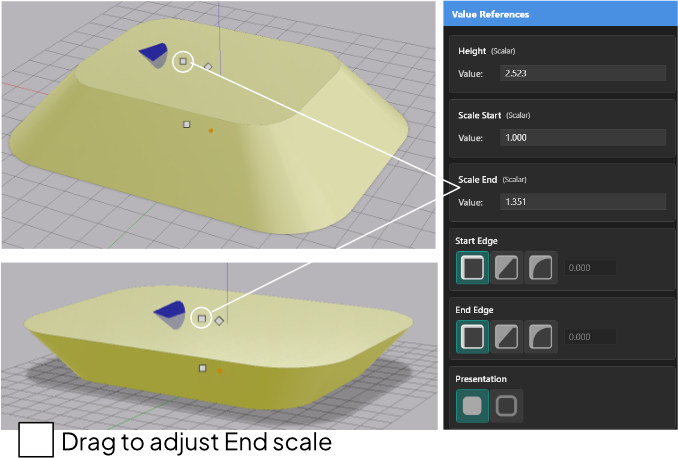
Parameters
| Parameter | What it controls |
|---|---|
| Height | The length of the extrusion along its axis |
| Scale Start | Profile scale at the start (bottom) end — 1.0 is full size |
| Scale End | Profile scale at the end (top) — 1.0 is full size |
On-Screen Widgets
| Widget | What it does |
|---|---|
| White diamond | Drag to change Height |
| White squares | One at each end — drag to change Scale Start or Scale End |
Type exact values into the Value References panel when you need precise control. Drag the widgets when exploring shapes interactively.