Loft
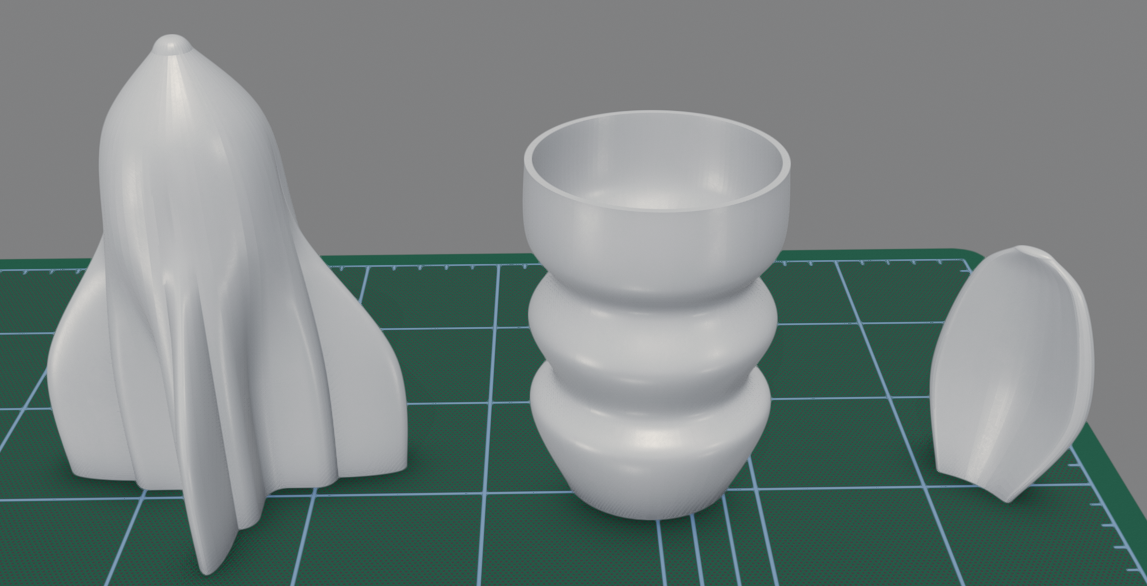
Connect profile drawings positioned along one axis into a single shape — a hull, a bottle, a funnel, a shoe upper.
A loft is a shape formed by extending a surface across a set of profile drawings. You position each profile at its own height along one axis, and the loft tool connects the profiles in order into a single surface. The loft is either a solid object or a hollow shell that has a defined wall thickness.
Each profile is a standard drawing, and each profile can be a different drawing. This makes a loft the right tool for objects whose cross-section changes along one axis: a boat hull, a bottle, a funnel, a shoe upper.
Creating a Loft
There are two ways to create a loft:
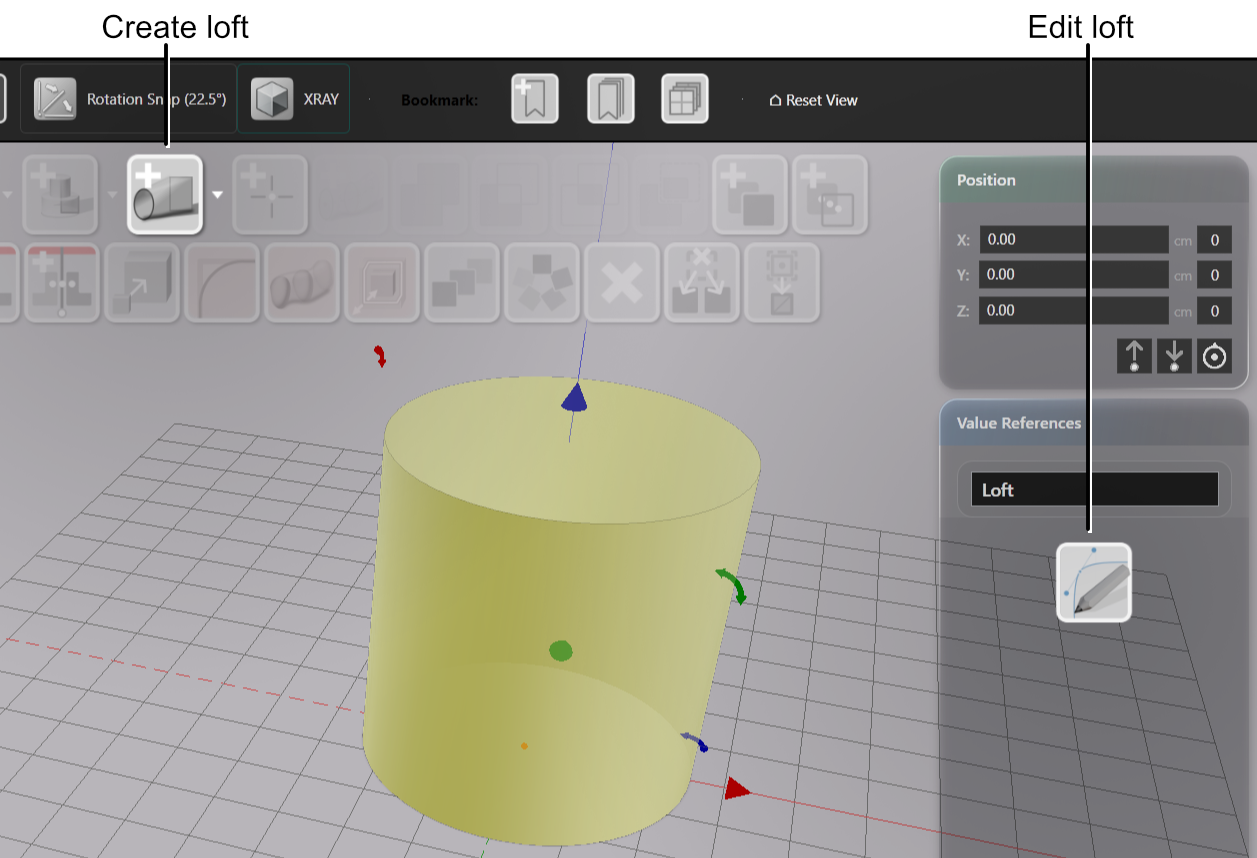
Create Loft button in the toolbar — click it and a new loft appears in the scene.
Quick-select menu — open the quick-select menu next to the Create Loft button and pick a drawing. The loft starts with that drawing as its single profile.
Editing a Loft
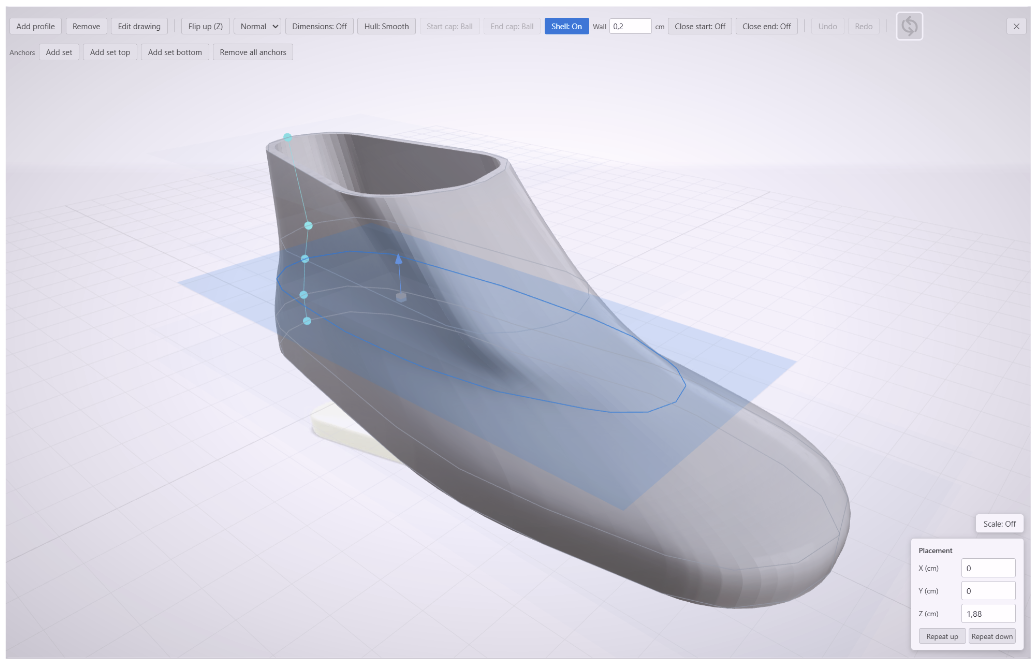
Select the loft and click Edit Loft in the Value References panel. The loft editor opens in the viewport. In the loft editor you add profiles, position them along the axis, and set the hull, cap and shell options.
Double-click a profile in the loft editor to open the profile editor. The profile editor has the same tools as the Drawing Editor.
What a Profile Needs
- Each profile is a single closed loop. When a drawing contains several shapes, only one of them takes part in the loft.
- Holes in a profile are ignored. To put a hole through a loft, cut it with a boolean operation afterwards.
- All profiles lie in planes perpendicular to the axis of the loft. You can move a profile sideways and up or down, but you cannot tilt it.
In This Section
- The Loft Editor — add, position and duplicate profiles; hull, cap and shell options
- The Profile Editor — draw each profile with another profile shown as a reference
- Anchors — control how the surface flows from one profile to the next
- The Loft Editor Add and position profiles along the axis, duplicate them, and set the hull, cap and shell options.
- The Profile Editor Draw each profile of a loft with the Drawing Editor tools, with another profile shown as a reference outline.
- Anchors Anchor sets pin a point on each profile so that the loft surface passes through them — the control over twist and flow between profiles.