Drawings Mode and Save Image
Switch to a technical drawing appearance and export the current view as a PNG image.
The Drawing Editor has two rendering styles. The Style dropdown in the toolbar switches between them.
Style: Default
Default is the normal editing view. Shapes appear with their standard colors and fills. Use this while building and adjusting your profile.
Style: B&W
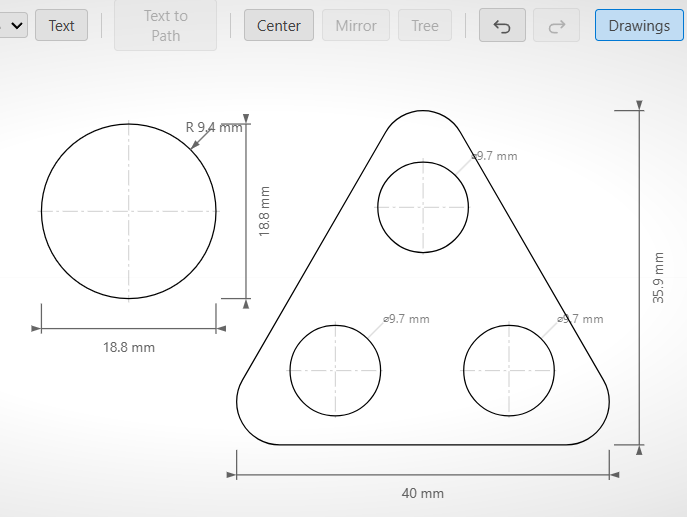
B&W renders the drawing with a white background, black outlines, and no fills. It produces the clean, neutral appearance of a technical drawing. Dimension annotations remain visible in this style.
In B&W mode, all shapes receive dimension annotations regardless of selection — useful when you want a fully dimensioned export.
Saving an Image
Click Save Image in the toolbar to export the current Drawing Editor view as a PNG file. The file is named <partName>_shape.png by default.
Save Image captures whatever is currently visible — including any active style, visible dimension annotations, and the current zoom level. To produce a clean technical drawing:
- Switch the Style dropdown to B&W.
- Adjust zoom so the drawing fills the canvas comfortably.
- Click Save Image.
The exported PNG is ready for documentation, spec sheets, or sharing.