Anchors
Anchor sets pin a point on each profile so that the loft surface passes through them — the control over twist and flow between profiles.
An anchor set marks one point on each profile of the loft. The loft surface passes through every marked point. Anchors control how the surface flows between profiles that differ in shape or size. Without anchors the surface may twist. With anchors you decide where each part of one outline meets the next outline.
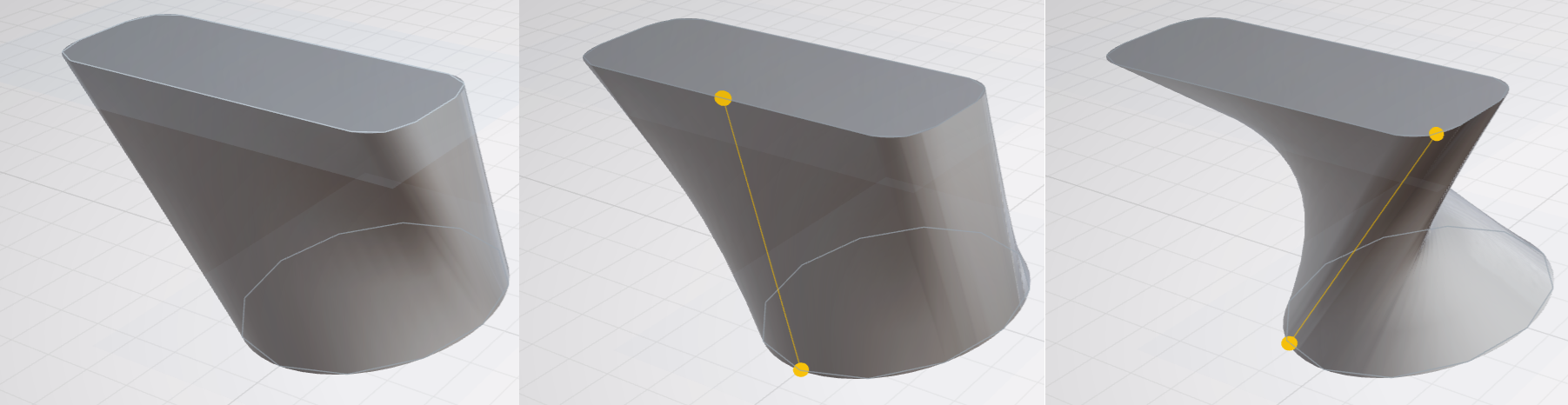
Adding an Anchor Set
The anchor commands sit on the Anchors row of the loft editor toolbar.
- Add set — click any point on the outline of a profile. The loft tool places a matching point on every other profile and links the points into a chain.
- Add set top — places a chain at the highest point where each outline crosses the vertical centerline.
- Add set bottom — places a chain at the lowest point where each outline crosses the vertical centerline.
From left to right the row holds Add set, Add set top, Add set bottom and Remove all anchors, labelled a to d in the loft editor figure.
Moving an Anchor
Every anchor point drags freely along its outline. When you drag a point to a new position, the loft surface passes through the new position.
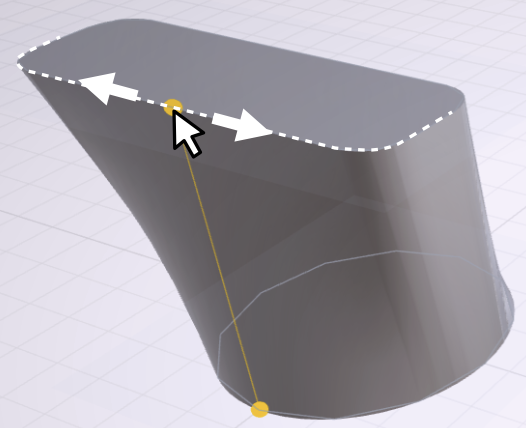
Snapping a Chain
Click a chain to select it. An inspector opens with Delete anchor set and four snap commands.
| Command | Moves every point in the chain to |
|---|---|
| Snap left | The leftmost point where each outline crosses the horizontal centerline |
| Snap right | The rightmost point where each outline crosses the horizontal centerline |
| Snap top | The highest point where each outline crosses the vertical centerline |
| Snap bottom | The lowest point where each outline crosses the vertical centerline |
Removing Anchors
Remove all anchors clears every set, including broken sets with nothing visible left. Undo restores them in one step.
Broken Anchors
When you redraw a profile, its anchor points may no longer land on the outline. A notice appears with a Remove broken anchors button. The same button sits next to the Placement fields. It deletes only the broken chains and leaves the other chains in place. Undo restores them.