Text Tool
Place editable text on the canvas — text converts to vector outlines for extrusion.
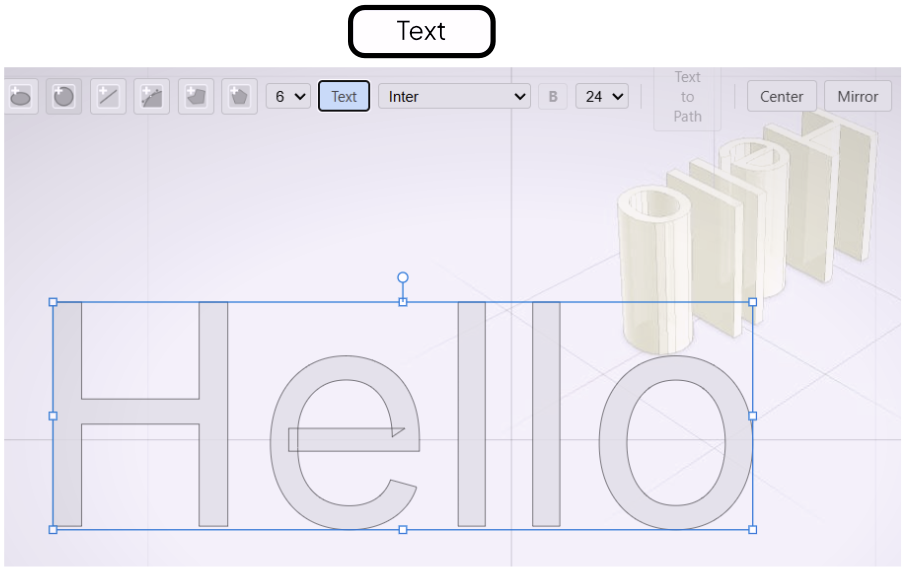
The Text tool places editable text directly on the drawing canvas. Once you switch away from the Text tool, each letter converts to precise vector outlines — the same format as any other closed path. The result can be extruded into solid letter forms.
Placing and Editing Text
Select the Text tool from the toolbar. Click on the canvas to position the cursor, then type. Arrow keys move the cursor within the text. Click elsewhere in the text to reposition the cursor and continue editing.
Font Controls
The toolbar shows font controls whenever the Text tool is active or a text shape is selected with the Select tool:
- Family — choose from Inter, Jost, Lora, Roboto Slab, or Share Tech Mono.
- Size — specified in typographic points. One point equals 0.035278 cm in model units.
- Bold — toggle on or off.
Switching to Vector Outlines
When you select a different tool or close the Drawing Editor, the text converts to vector outlines. Each letter becomes a separate closed path that extrudes as a solid. You can no longer edit the text as characters after this step — if you need to change the wording, re-enter the text before converting.