Rendering Modes
Switch between Default, Studio, and Present rendering modes to control how your model looks in the viewport.
AdaShape offers three rendering modes. Each one lights and displays your model differently. Switch between them at any time — your geometry is unchanged.
Open the View menu and select a rendering mode from the list.
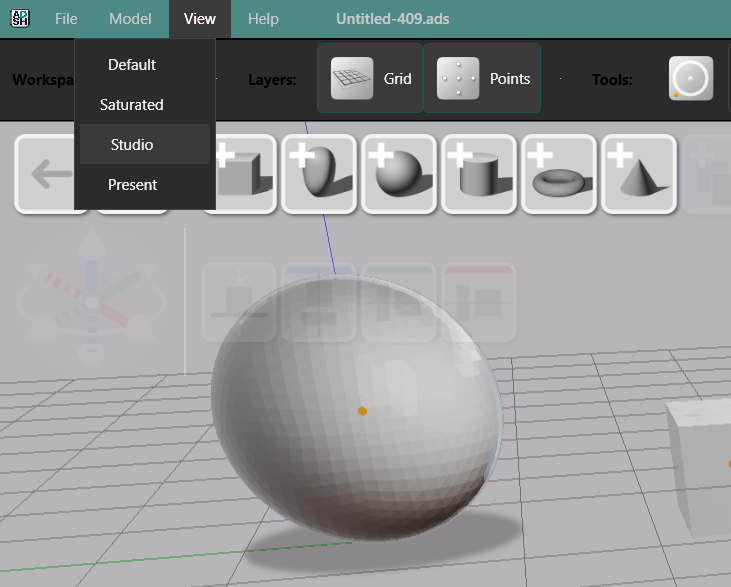
Default
The standard viewport mode. Balanced lighting with no special effects. Use this for everyday modeling — it is fast and unobtrusive.
Studio
Matcap lighting with ground plane shadows. The matcap shader wraps a pre-lit material around every surface, making it easier to read subtle curvature and surface continuity. Shadows from the ground plane give depth to the composition. Use Studio when you want to evaluate form and geometry clearly.
Present
Black background with a halo effect and reduced reflections. Designed for screenshots and presentation materials where a clean, dramatic look matters more than accurate surface feedback. Use Present when sharing work with others or capturing images for documentation.
Color Scheme
The Bright Color Scheme option switches to a material palette with matcap-based rendering for sharper surface detail. It is available alongside any rendering mode and affects how material colors appear on surfaces.