Circular Array
Repeat a shape around a circle of a given radius, over a full circle or part of one.
A circular array repeats a shape around a circle. You set the radius of the circle and how far around it the copies go. The bolt holes on a flange, the teeth of a gear, the spokes of a wheel: each is one shape and one array.
Creating a Circular Array

- Select the shape to repeat.
- Click Circular Array in the toolbar.
The array appears with its circle centered on the shape’s bounding box. Drag the radius handle to resize the circle, and drag the angle handle to set how far around the circle the copies go.
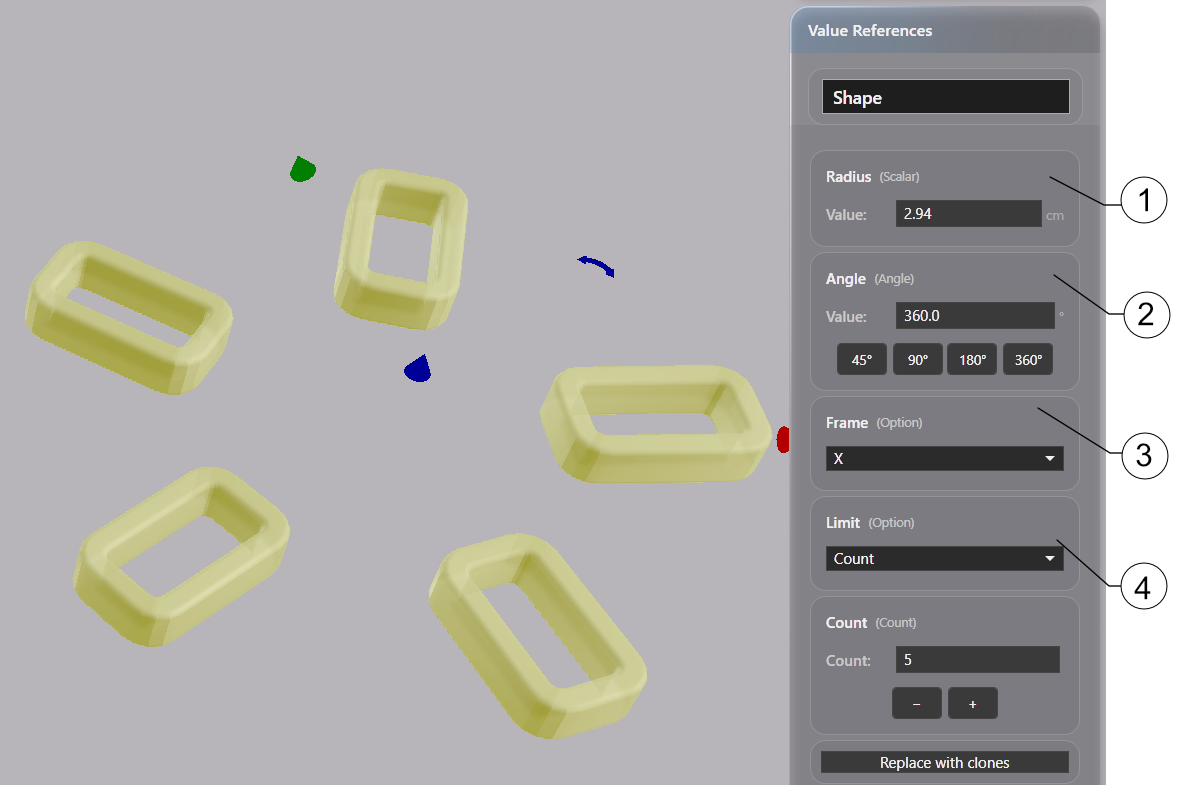
Parameters
| Parameter | What it controls |
|---|---|
| Radius | The radius of the circle |
| Angle | How far around the circle the copies go. 360° is the full circle and 180° is half of it |
| Frame | The orientation of each copy around the circle |
| Limit | How the number of copies is decided |
| Count | The number of copies, when Limit is Count |
| Spacing | How tightly the copies are placed, when Limit is Fit |
Radius and Angle
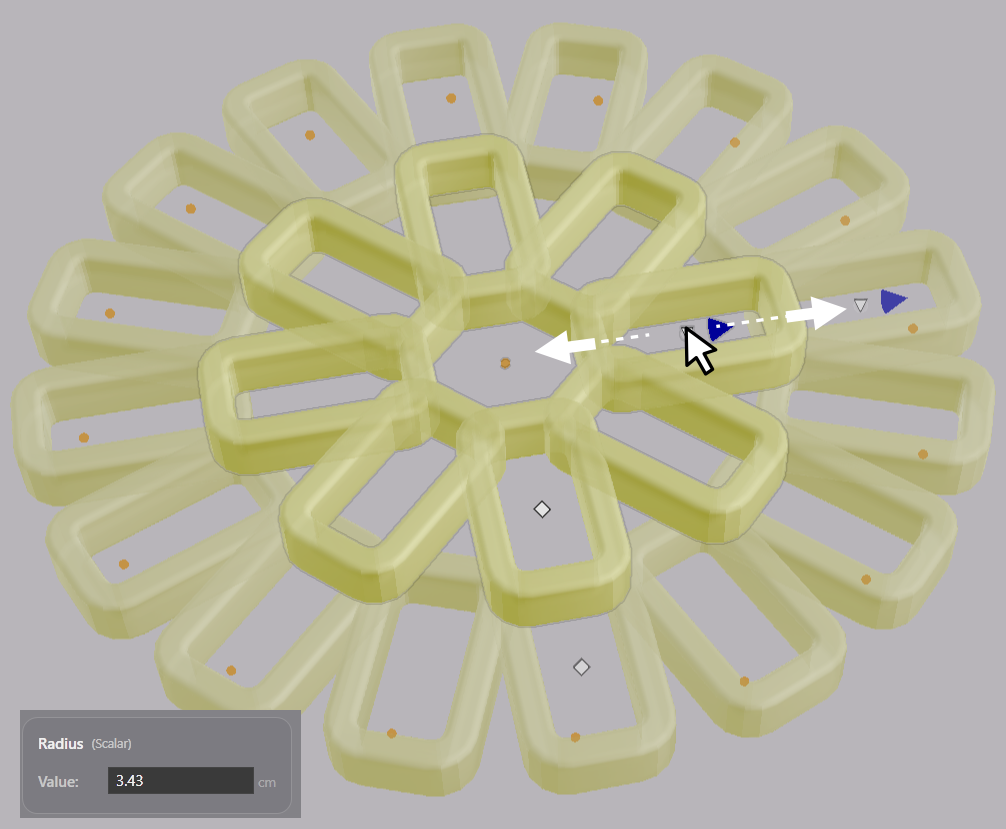
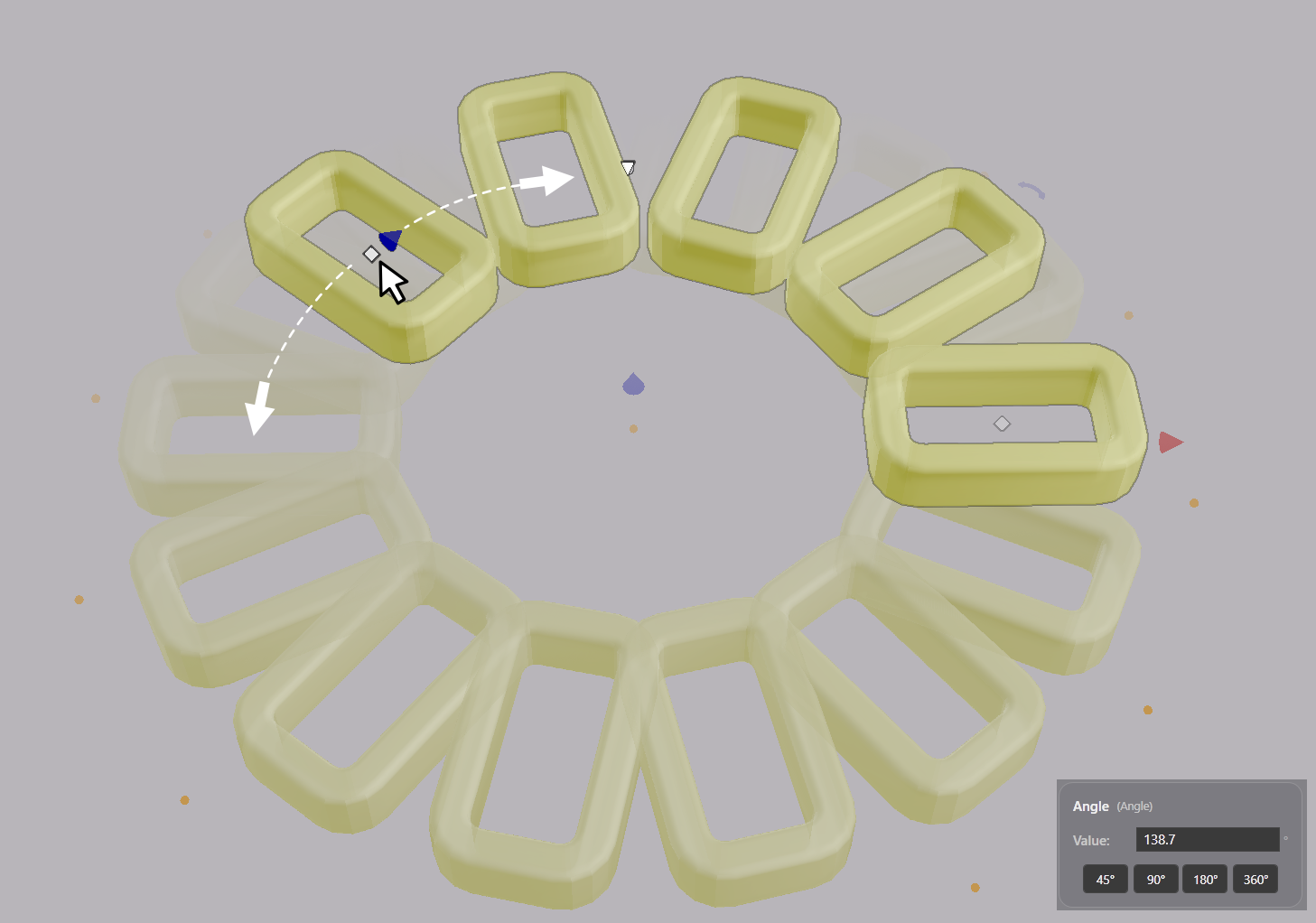
Drag the radius handle in the viewport, or type a value into the Radius field. Drag the angle handle, or type a value into the Angle field. The preset buttons under the Angle field set 45°, 90°, 180° or 360°.
Frame
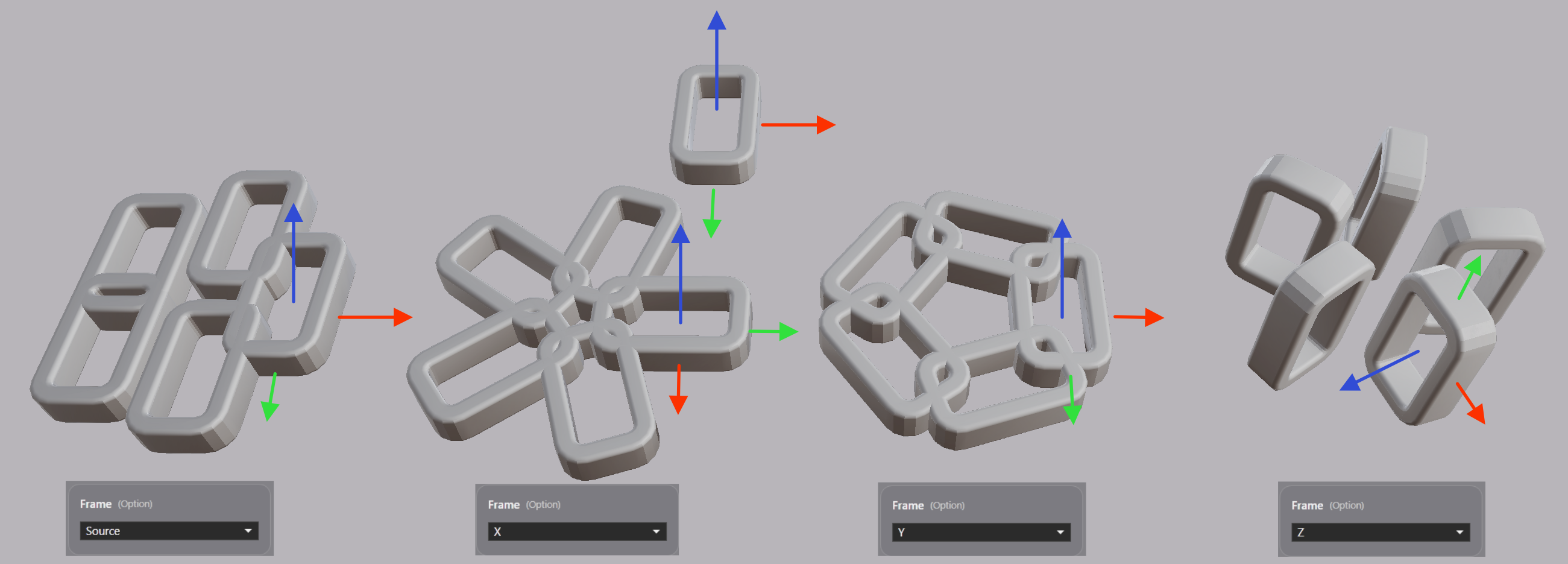
Source keeps every copy in the orientation of the original shape. X, Y or Z turns that axis of the shape to follow the circle.
Limit
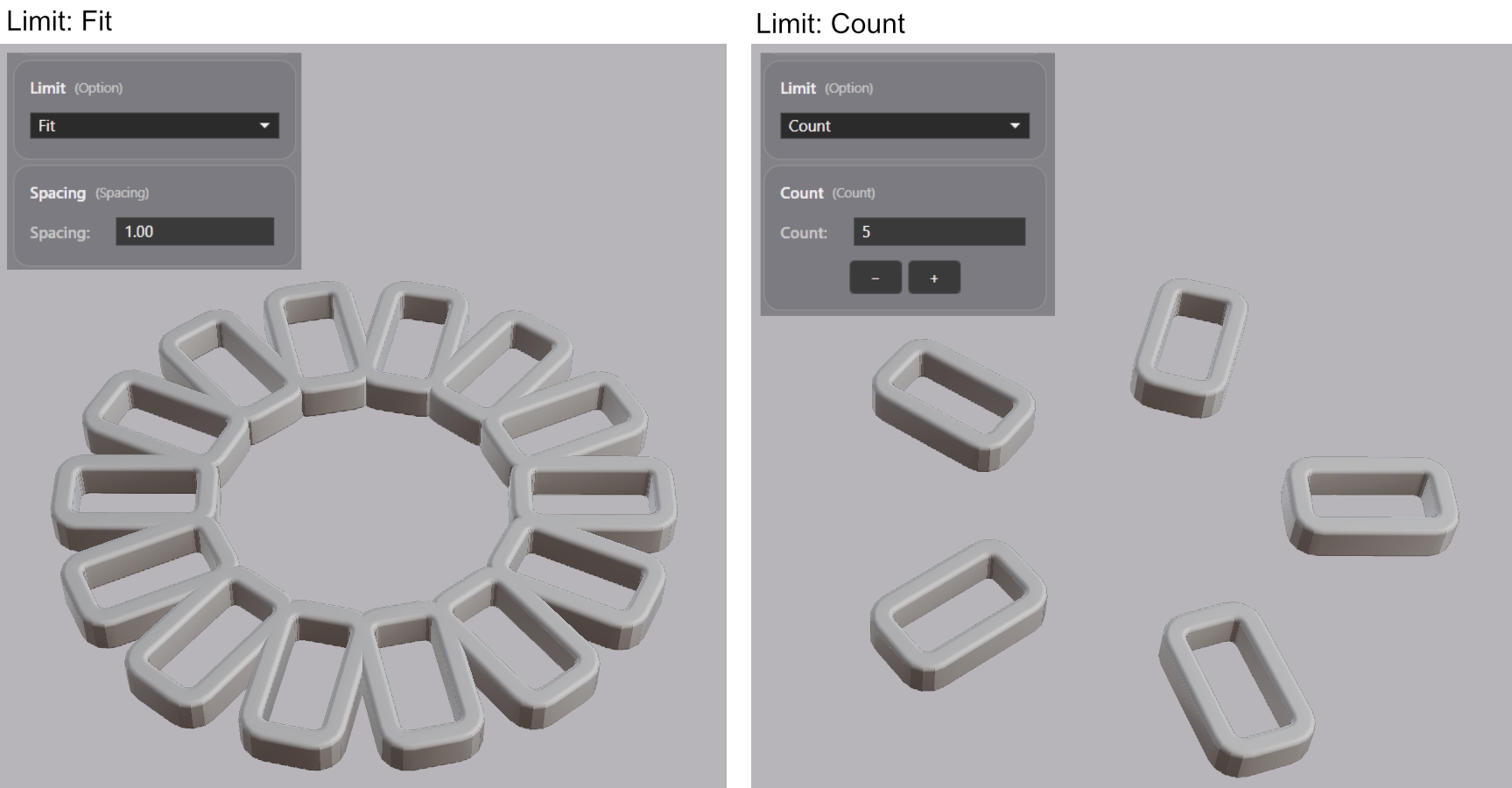
Count places a specific number of copies around the circle. Fit places as many copies as fit on the circle. With Fit, Spacing sets how tightly the copies are placed, as a multiple of the shape’s size.
Replace with Clones
Click Replace with clones in the Value References panel to swap the array for individually placed clones at the same positions. Use this when you need to move or delete one copy on its own. See Copy and Clone.
Note: An exported file contains the array as one merged solid.