Node Edit Tool
Edit individual anchor points on paths — insert, delete, and adjust nodes and curve handles.
The Node Edit tool exposes the individual anchor points that make up a path. Use it to refine shapes after drawing — repositioning points, smoothing corners into curves, and sculpting bezier handles.
Selecting and Moving Nodes
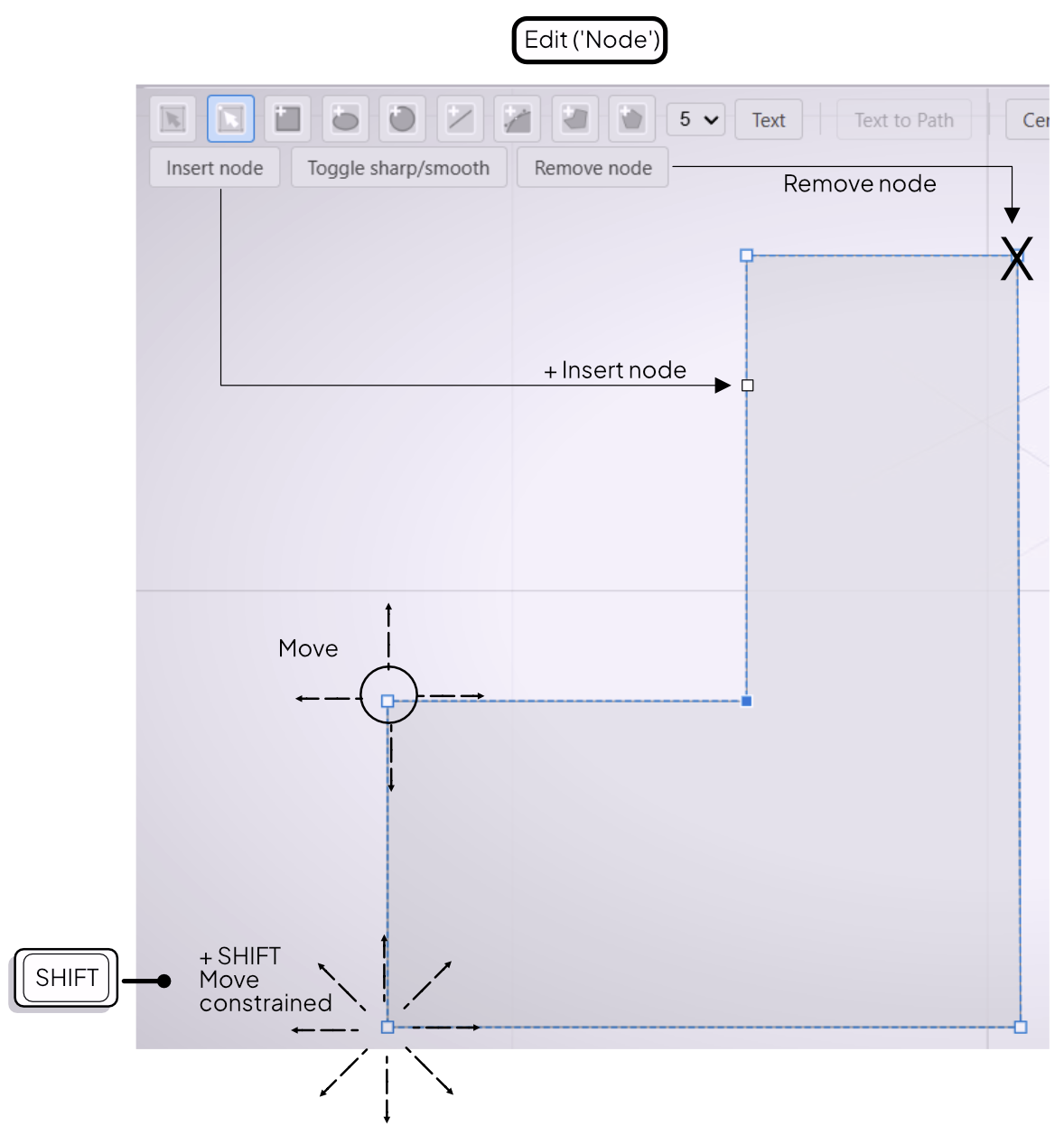
Click a path to enter node editing. All anchor points become visible. Click a node to select it, then drag to reposition it. To constrain movement to the horizontal or vertical axis, hold Shift while dragging.
Inserting and Deleting Nodes
Select the Node Edit tool and click an edge between two existing nodes to insert a new node at that position. To delete a node, select it and click the Delete Node button in the toolbar. The path adjusts to connect the remaining nodes smoothly.
Toggling Between Sharp and Smooth
Select a node, then use the toolbar buttons to switch between a sharp corner and a smooth curve. Sharp nodes produce an abrupt change in direction. Smooth nodes produce a continuous curve through the point.
Shaping Curves with Control Handles
Smooth nodes display bezier control handles — two arms extending from the node. Drag either handle to adjust the angle and magnitude of the curve entering and leaving that node.