Tessellation Resolution
Control mesh density for modeling performance vs. geometric precision — reduce during editing, increase before export.
Tessellation converts the mathematical geometry of your model into a triangle mesh for display and export. Higher resolution produces a denser mesh that follows curves more closely. Lower resolution produces a coarser mesh that is faster to compute.
Go to Settings → Tessellation and select a level.
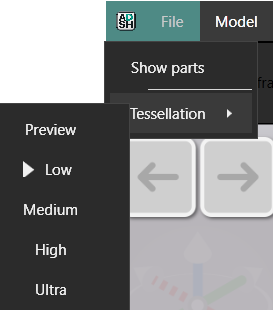
Resolution Levels
| Level | Chordal deviation (mm) | Angular deviation (°) | Use case |
|---|---|---|---|
| Preview | 0.5 | 15.0 | Quick preview, fast navigation |
| Low | 0.1 | 10.0 | Fast editing on complex models |
| Medium | 0.05 | 5.0 | Balanced — default for most work |
| High | 0.01 | 1.5 | Final review and detail work |
| Ultra | 0.01 | 1.0 | Production export |
Chordal deviation controls how far the mesh may stray from the true surface. Angular deviation controls how closely curved edges are approximated. Smaller values mean higher fidelity — and more triangles.
Practical workflow
Work at Medium or Low while modeling. The viewport stays responsive and edit feedback is immediate. Raise the level to High or Ultra before exporting — the exported mesh will reflect the current tessellation setting.
Performance tip: Freeze
If a complex model causes slowdowns, use the Freeze tool on sub-components you are not currently editing. Frozen objects are converted to static presentation geometry. They no longer react to tessellation changes, which removes them from the recalculation workload.
Simplify
Simplify is a setting under Settings → Tessellation with two values, On and Off. It applies to the volumetric tools: Rounding, Sweep and Surface Offset. Off, the default, keeps full mesh detail. Set to On, Simplify re-solves those operations faster with a leaner mesh. You can switch between the two at any time. Blend and Meld are not affected.
Imported models
Imported models have a fixed mesh density determined at import. Tessellation resolution does not affect them.