Union
Merge two or more shapes into a single solid, with a sharp, blended or melded seam.
Union merges all selected objects into a single solid. Internal geometry at the intersection is removed; only the outer boundary of the combined shape remains.
Applying Union
- Select two or more objects. You can use a lasso selection to pick multiple objects at once.
- Click Union in the toolbar.
The merged result appears as a new part named Union. You can union more than two objects in a single operation.
Blend and Meld
A union normally joins two shapes with a sharp seam. Blend rounds that seam with a smooth fillet. Meld does what Blend does, and also bridges a gap between shapes that do not touch. Both are options of Union. Cut and Intersect do not have them.
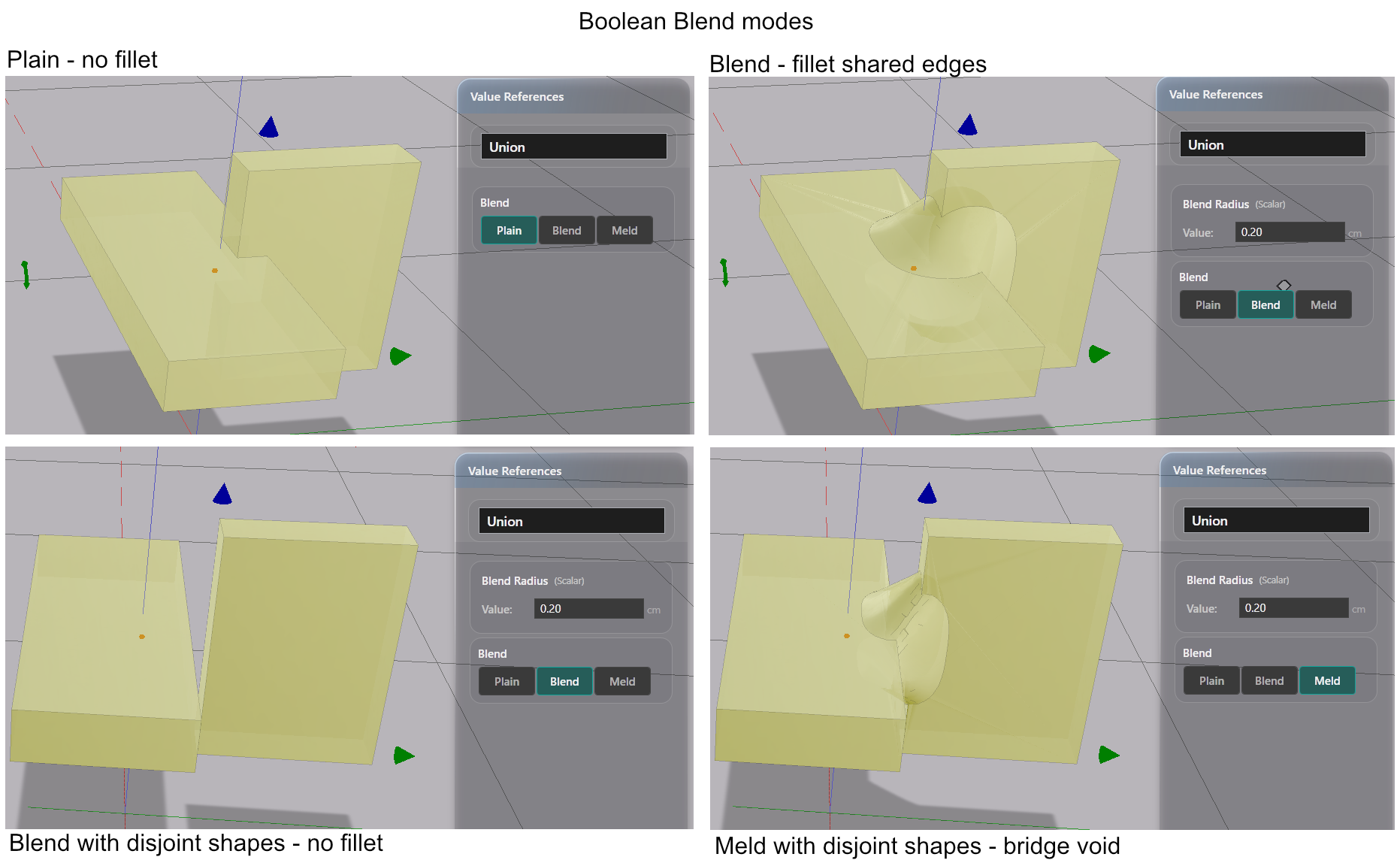
Setting the Blend Mode
- Select a union.
- In the Value References panel, click Plain, Blend or Meld in the Blend row.
With Blend or Meld selected, a Blend Radius field appears. Its default is 1.0 in the current display unit. Type a value to change the size of the fillet.
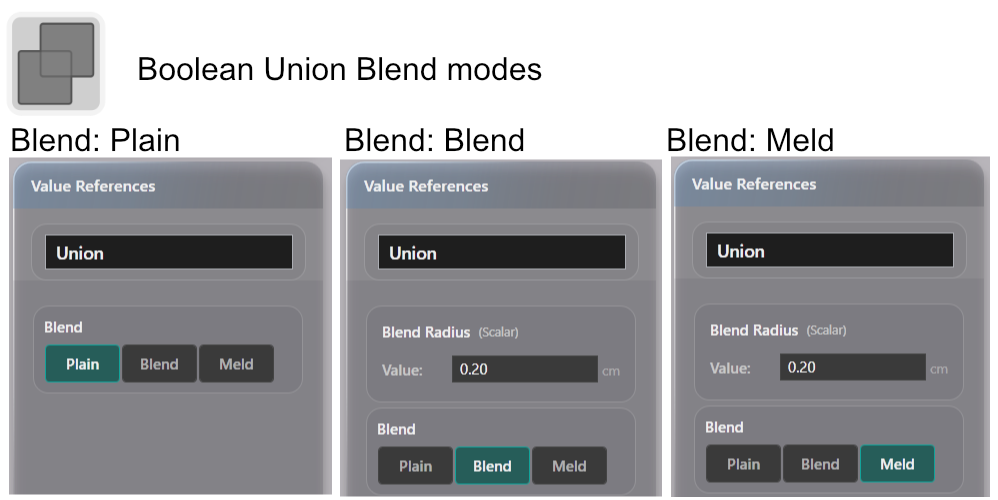
Plain, Blend and Meld
| Mode | What it does |
|---|---|
| Plain | Joins the shapes with a sharp seam |
| Blend | Rounds the seam with a fillet of the given radius. Shapes that do not touch stay apart |
| Meld | Rounds the seam, and joins the nearest areas of shapes that do not touch with smooth necks |
Blend and Meld are volumetric operations. If the fillet looks coarse, raise the tessellation resolution. The Simplify setting does not affect them.