Measure Tools
Check distances, wall thickness and part dimensions in the viewport.
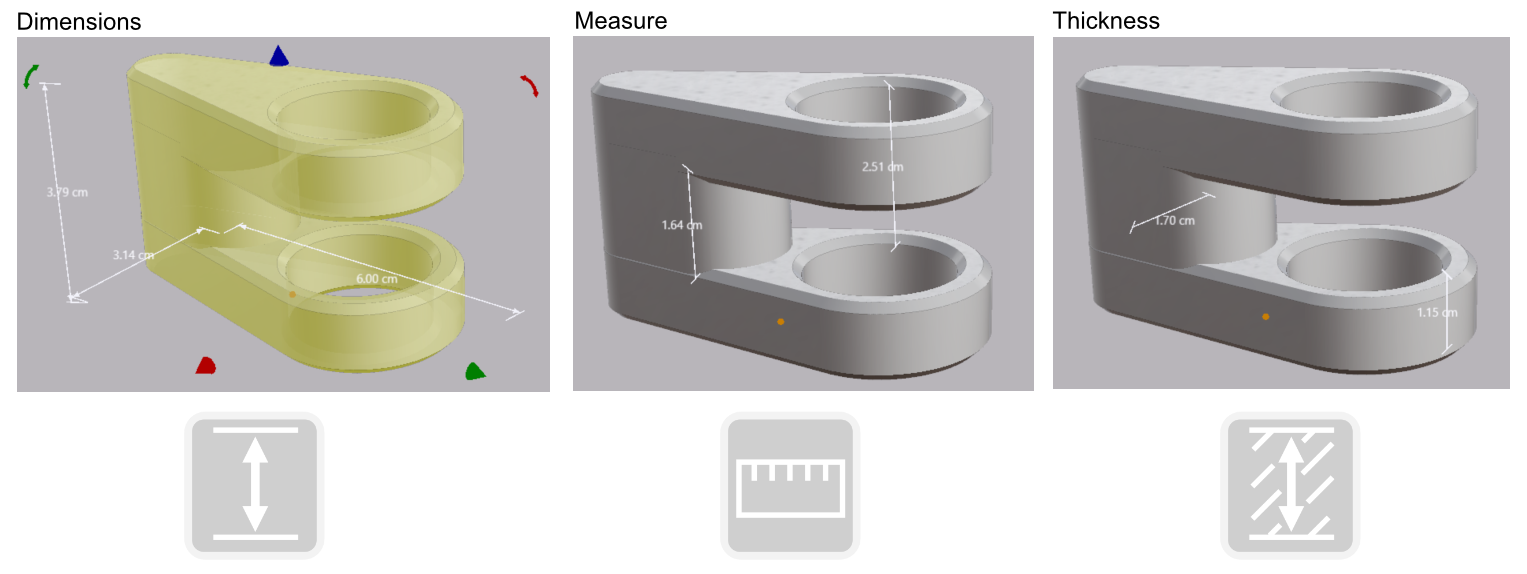
Three tools measure your model in the viewport, and a fourth clears the readings. Measure gives the distance between two points. Thickness gives the wall thickness at a point on a surface. Show Dimensions displays the overall size of the selected part. Clear Dimensions removes every reading.
 |
Measure Click two points to see the distance between them. |
 |
Thickness Click a surface to measure the wall thickness at that point. |
 |
Show Dimensions Display the dimensions of the selected part. |
 |
Clear Dimensions Remove all Measure and Thickness readings. |
Measure
- Click Measure.
- Click the first point. A preview line follows the cursor.
- Click the second point.
The distance line and its label are placed, and the tool finishes. Clicking empty space measures against the ground plane.
Thickness
- Click Thickness.
- Click a surface.
Thickness measures straight through the solid from that point to the far side. One click places the line and the label. Use it to check a wall before printing.
Note: On an open surface with no far side, the status bar reports that there is nothing to measure.
Show Dimensions
Toggle Show Dimensions on and select a part. The viewport shows the overall width, depth and height of the part. Round shapes show a radius as well: cylinders, spheres, cones, capsules and tori.
Clear Dimensions
Measure and Thickness readings stay in the viewport and accumulate. Click Clear Dimensions to remove all of them.