Bookmarks
Save named snapshots of a model at any point, return to them to compare against later work, or fork one into an independent new model.
A bookmark is a named snapshot of your model at a single point in its history. Save one before a risky change, and you can always come back to compare — or fork the snapshot into a fresh model to explore a variation. Bookmarks are stored inside the .ads file, alongside the model.
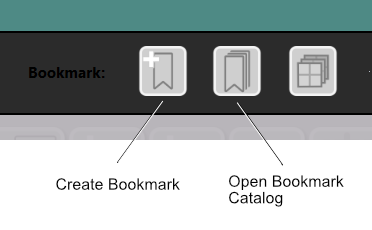
Creating a Bookmark
Click the Bookmarks button to capture the current state of the model. The snapshot records the model’s full modeling history up to that point — not just a frozen result — along with a thumbnail taken at that moment. Give it a name you will recognize later — “before hollowing out”, “rounded version”, “client review”.
Three toolbar buttons keep the most common actions within reach without opening the menu:
- New bookmark — in the workspace toolbar; fades out while you are viewing a bookmark.
- Exit bookmark — appears at the bottom-center of the viewport while you are in bookmark view.
- New model from bookmark — sits beside the exit button; forks the bookmark you are viewing into an independent model.
Viewing a Bookmark
Click any bookmark to enter view mode. AdaShape displays the bookmarked state and suspends all editing so you can inspect it freely. The title bar shows “viewing bookmark: <name>” so you always know where you are.
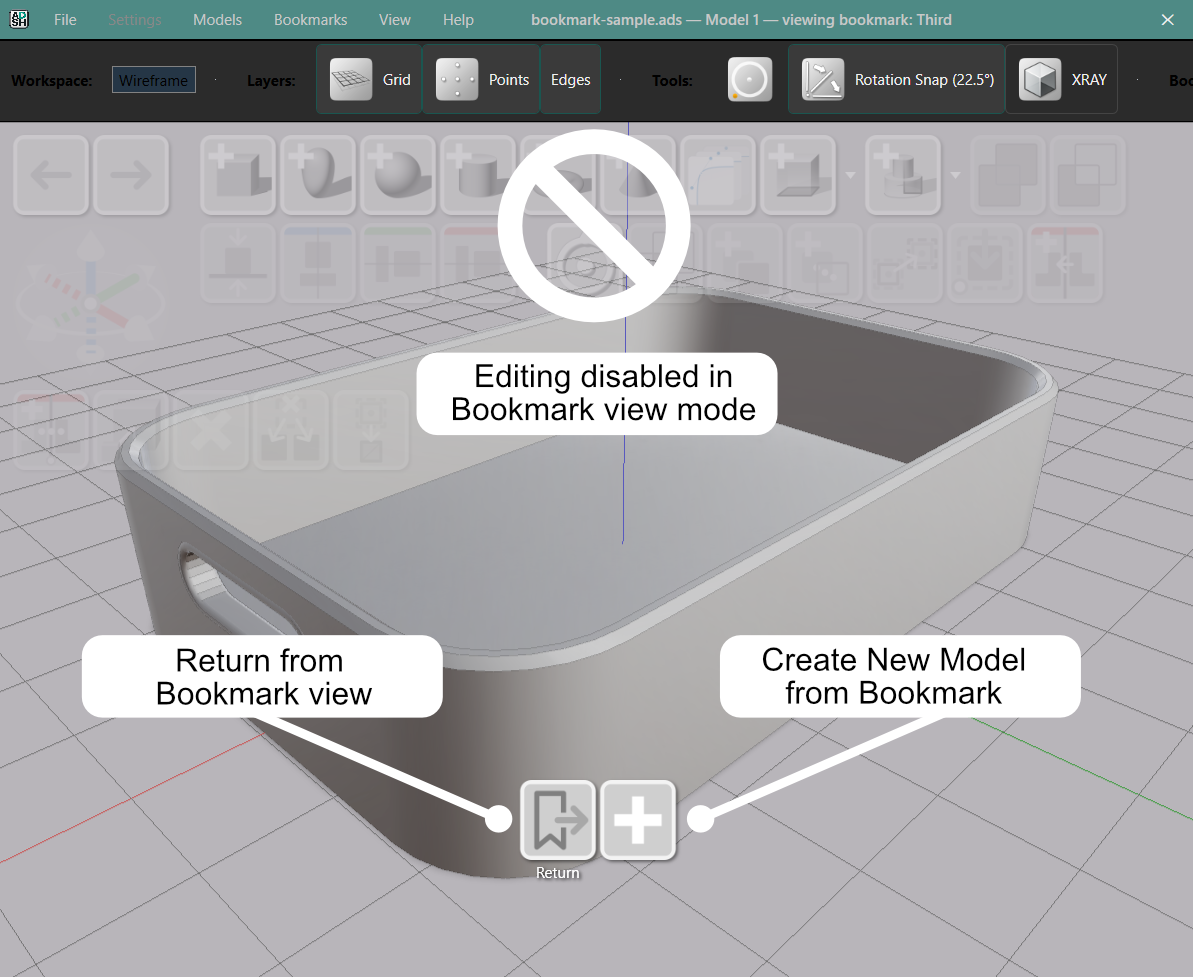
You cannot edit a bookmark directly — it is a record of a past state, not a working copy. Return (in the Bookmarks menu, or the exit-bookmark button) leaves view mode and takes you back to exactly where you were.
To turn a bookmark into something you can edit, fork it into a new model.
New Model from Bookmark
New model from bookmark forks the snapshot into a fully independent model in the same file. Because the bookmark carries the full modeling history, the new model is completely editable — you can step back through and change earlier parameters, just as in the original. It becomes a fresh starting point for a design variation you want to develop separately, with no link back to the original. This is the way to branch a design: bookmark the state you like, then fork it and explore.
The Bookmark Catalog
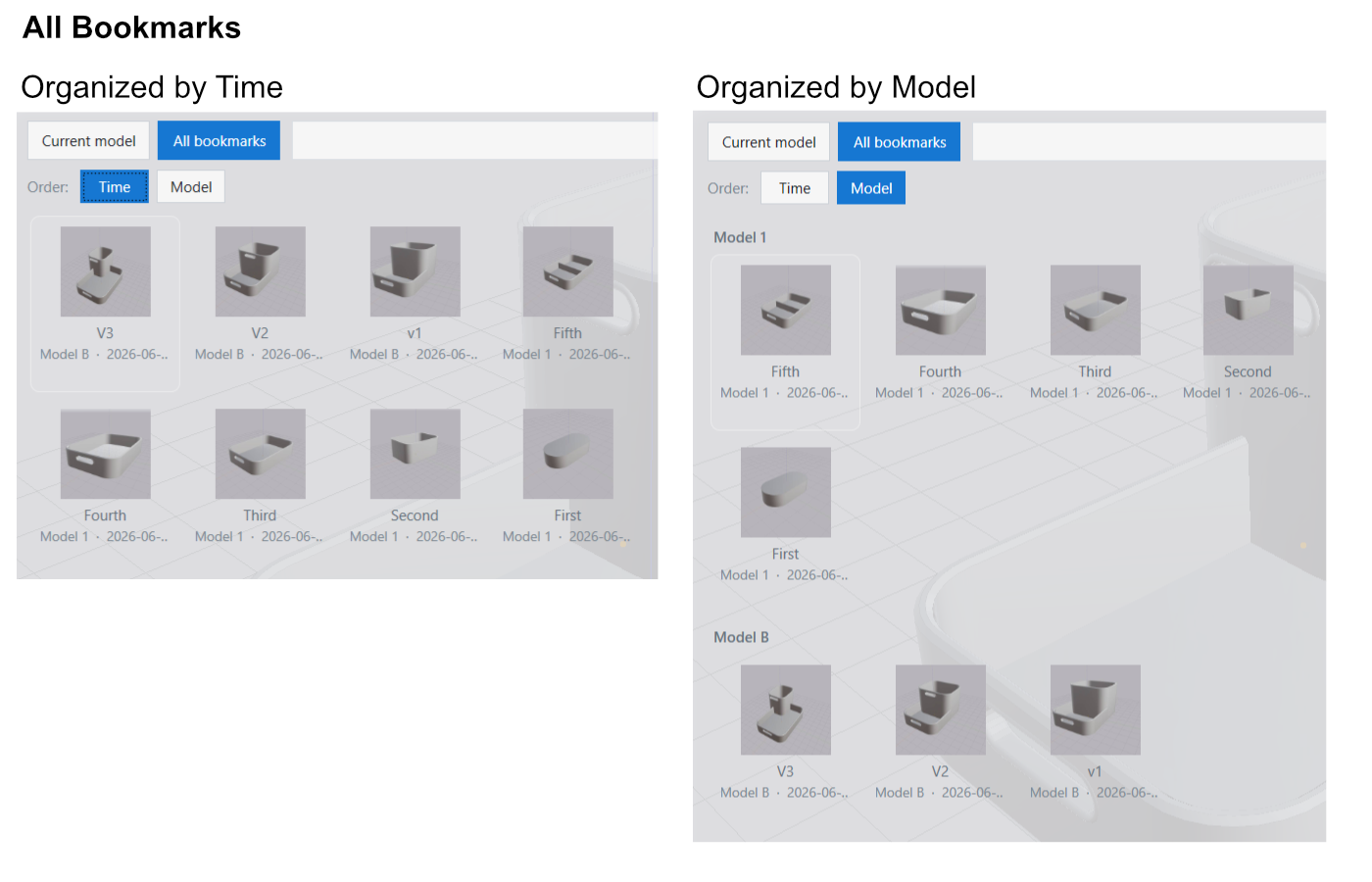
The Bookmark Catalog gives you a visual overview of every bookmark, with thumbnail previews captured when each one was made. Click the bookmark-catalog button (next to the new-bookmark button) to open it as an overlay.
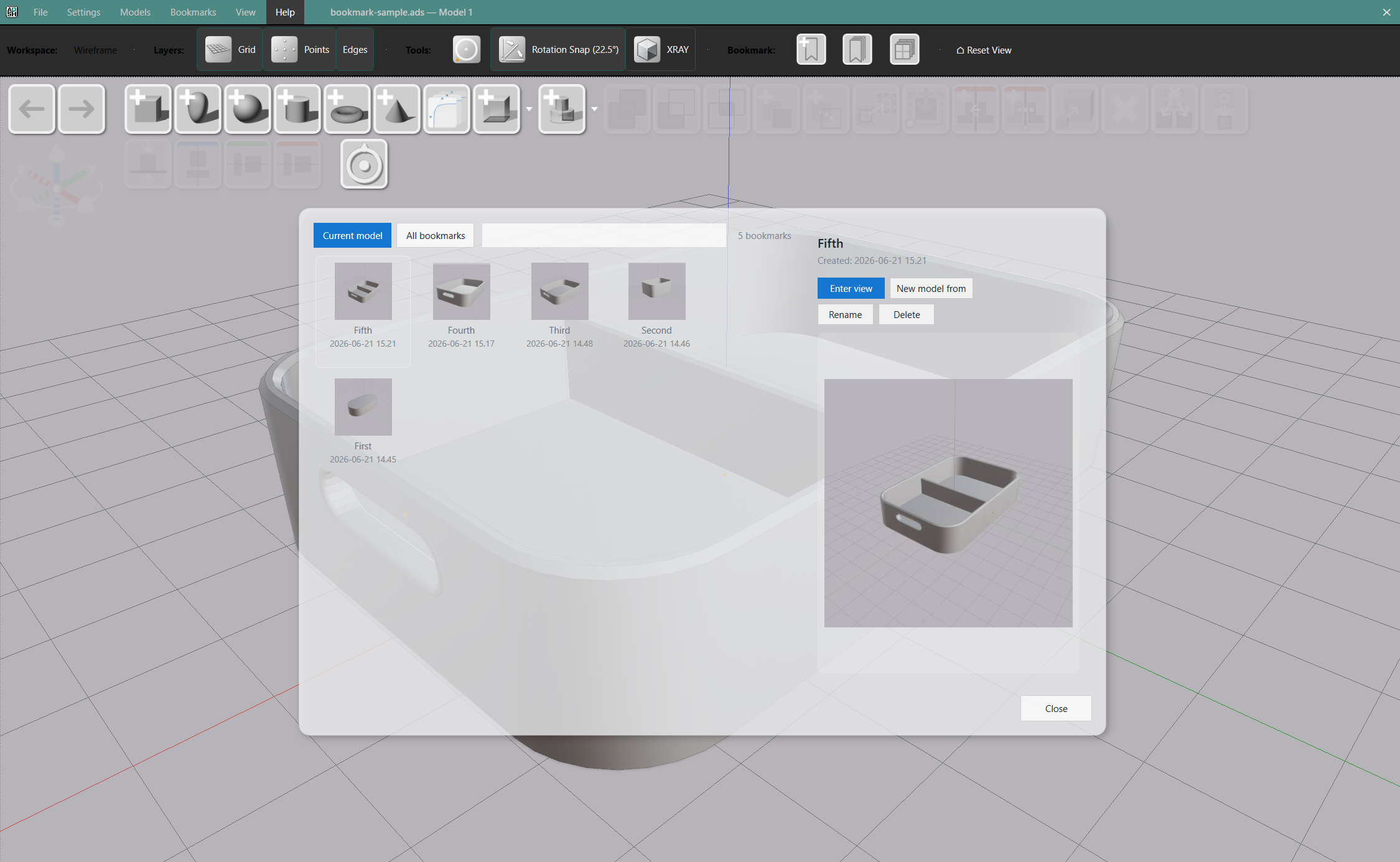
The catalog has two tabs:
- Current model — bookmarks belonging to the active model, newest first.
- All bookmarks — bookmarks from every model in the file. Use the Time / Model sort toggle and the search box to filter by name or by the model that owns them.
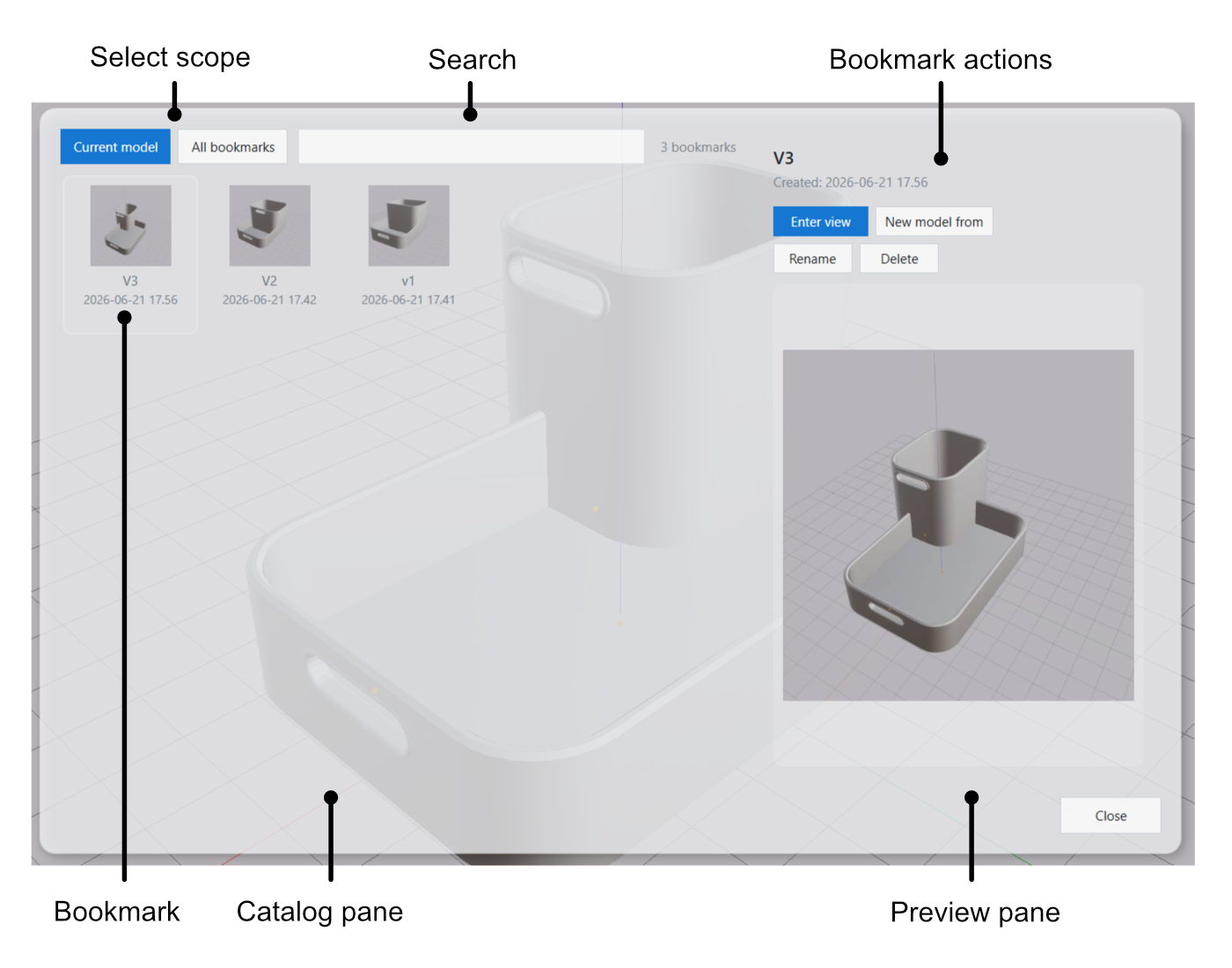
Select a bookmark and the right pane shows a full-size thumbnail with four actions:
| Action | What it does |
|---|---|
| Enter view | Opens the bookmark in view mode. Works across models — Return takes you back to whichever model was current when you opened the catalog. |
| New model from | Forks the bookmark into an independent model, pre-named "<name> (copy)". |
| Rename | Renames the bookmark. |
| Delete | Removes the bookmark from the catalog. |
Delete is not reversible. Deleting a bookmark removes it from the catalog. The underlying data stays on disk, but restoring a deleted bookmark is not yet supported — so delete only when you are sure.