Scaling Objects
Resize objects by entering exact dimensions or using the Scale Selected tool.
Scale Selected resizes one or more objects in the scene. You can scale uniformly — all three axes by the same factor — or set each dimension independently.
Starting a Scale Operation
- Select the object or objects you want to resize.
- Click Scale Selected in the toolbar.
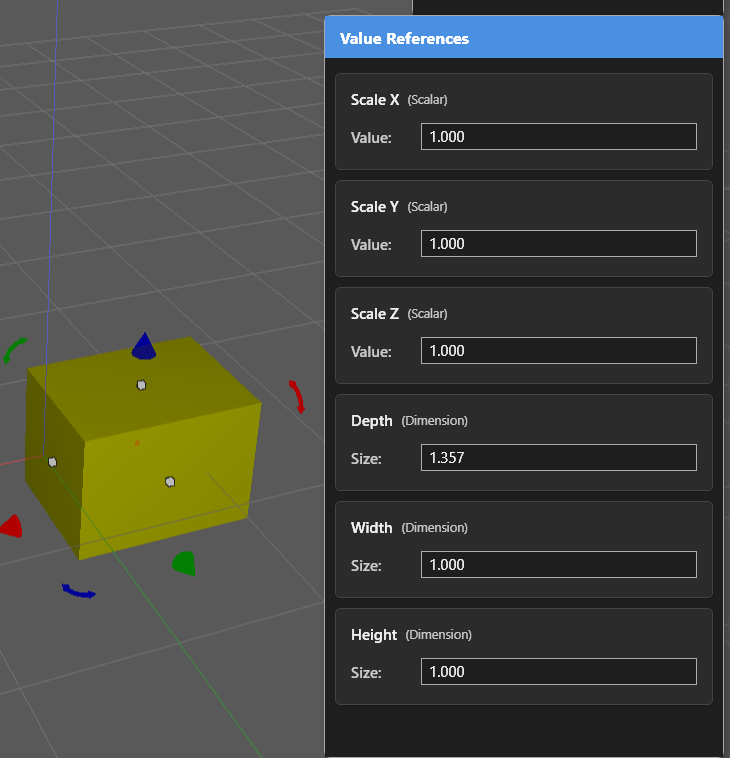
The Value References panel updates to show editable Depth, Width, and Height fields.
Entering Exact Dimensions
Click any dimension field and type the target value. Press Enter to apply. The object resizes along that axis immediately. You can edit each field separately to set precise dimensions without affecting the other axes.
Uniform Scaling
To scale uniformly, enter a scale factor into all three fields using the same ratio, or drag the on-screen handle. Dragging the handle scales all three axes together, preserving the object’s proportions.
Scaling Multiple Objects
When more than one object is selected, the scale operation applies to all of them relative to their shared bounding box. The objects resize together and maintain their positions relative to each other.
Use the Position Editor after scaling if you need to reposition the result precisely.