Revolve
Create axially-symmetric 3D shapes by rotating a 2D profile drawing around an axis — bottles, wheels, lathe-turned forms.
A revolve takes a 2D profile drawing and rotates it around a vertical axis to produce a 3D solid. Anything a lathe can turn — bottles, wheels, bowls, spindles, knobs — starts with a profile and a single axis.
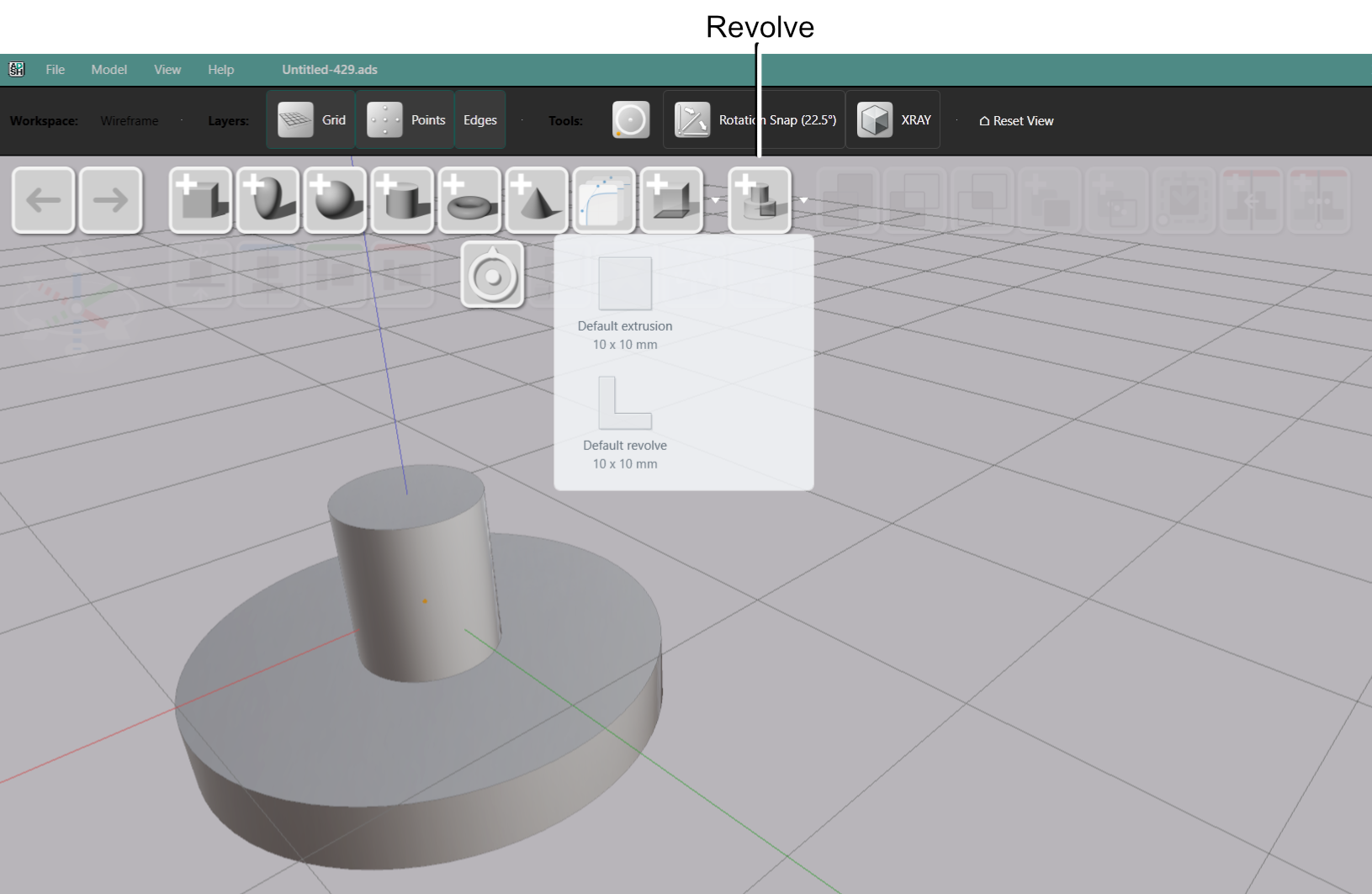
Creating a Revolve
There are two ways to create a revolve:
Revolve button in the toolbar — click it and a new revolve shape appears in the scene immediately. Open the Drawing Editor to draw the profile. The shape updates as you work.
Drawing Browser quick-select — open the Drawing Browser, select an existing drawing, and use the quick-select button to create a new revolve from it. The selected drawing becomes the cross-section profile.
Editing the Profile
Select the revolve and click Edit Drawing in the Value References panel. The Drawing Editor opens with a dark vertical line marking the rotation axis. Draw the profile on the right side of that line — the area to the left is clipped away and becomes the hollow center of the shape.
Key Parameters
Select a revolve to see its parameters in the Value References panel on the right.
| Parameter | What it controls |
|---|---|
| Presentation | Solid or Buffered mode |
| Angle | The sweep of the revolution in degrees (0–360) |
| Profile Offset | Distance between the profile and the rotation axis |
In This Section
- Drawing Area — the axis line, clipping region, and how to position the profile
- Angle — set the sweep from a partial arc to a full 360° solid
- Profile Offset — move the profile away from the axis for rings and hollow shapes
- Solid and Buffered Style — choose between a filled solid or a shell with configurable wall thickness
- Drawing Area How to edit the profile drawing for a revolve — the axis line, clipping, and positioning the cross-section.
- Angle Set the angle of revolution — from a partial arc to a full 360° solid.
- Profile Offset Move the cross-section away from the rotation axis to create rings, hollow revolves, and centered gaps.
- Solid and Buffered Style Choose between a filled Solid revolve or a hollow Buffered shell with configurable wall thickness.